
Free Resize Image for WhatsApp DP to 640×640 Pixels
No cropping, no watermark, no signup — done in under 10 seconds.
Resize image for WhatsApp DP to the perfect 640×640 pixels — exactly what WhatsApp requires for a sharp, circular profile picture on any device. No cropping, no account needed, nothing to install.
- Bulk resize multiple WhatsApp DPs at once
- Download all resized files as one ZIP
- Rename files — prefix, suffix, auto number
- No watermark on any output file
Welcome to Bulk Image Resizer
Drag & Drop your images here or click to select files
✨ Supports: JPG, PNG, WebP, AVIF, BMP, SVG, GIF, HEIC
All processing happens in your browser. Please keep backup copies of your original files — we are not responsible for any file loss or conversion issues.
Welcome to Bulk Image Resizer
Drag & Drop your images here or click to select files
✨ Supports: JPG, PNG, WebP, AVIF, BMP, SVG, GIF, HEIC
Why Resize Images for WhatsApp Profile Pictures?

Getting the right dimensions matters more than most people expect when resizing a WhatsApp DP. WhatsApp shows your photo as a circle, but the file it needs behind the scenes is a square at specific pixel dimensions. Upload something that doesn’t match those specs and WhatsApp will crop and compress it automatically — which often cuts off faces, softens detail, or chops out parts of the image you wanted to keep. Resizing to the correct 640×640 before you upload puts that control back in your hands, and the result looks consistent whether someone views your profile on Android, iOS, or WhatsApp Web.
The target size is 640×640 pixels — a 1:1 square ratio. That square shape is what lets WhatsApp carve out a clean circle without cutting off anything you didn’t choose to lose. Whether you’re using WhatsApp on Android, iOS, or WhatsApp Web, properly sized images maintain consistent quality and appearance. For WhatsApp Business accounts the bar is higher — your profile photo is often the first thing a customer sees, and a blurry or badly cropped logo makes the wrong impression.
Using this tool eliminates the usual annoyances: faces cut off, landscapes trimmed to nothing, or that slightly pixelated result you get when you let WhatsApp do the resizing for you. For precise control over which parts of your image to keep, try our WhatsApp profile picture cropper tool. The tool handles the technical side automatically while giving you options for non-square photos — blur backgrounds, colour fills, and cropping controls to decide exactly how your image fills that 640×640 frame.

WhatsApp Profile Picture Size Requirements Explained
Official WhatsApp Dimension Specifications
| Spec | Value |
|---|---|
| Recommended size | 640×640 pixels |
| Minimum size | 192×192 pixels |
| Aspect ratio | 1:1 (square) |
| Display format | Circular (cropped from square) |
| Accepted formats | JPG, PNG, WebP, HEIC |
| Max file size | 5MB (WhatsApp recompresses on upload) |
WhatsApp has a defined set of image requirements that affect how your photo looks across all devices. The maximum supported size is 640×640 pixels, which provides the sharpest possible display on high-resolution devices. It also accepts images as small as 192×192 pixels, but anything below the 640×640 maximum will look noticeably softer on modern high-DPI phone screens.
The sweet spot most guides recommend is 500×500 or larger — good quality without creating an oversized file. Anything under 192×192 gets rejected outright, and anything larger than 640×640 gets downscaled by WhatsApp’s own algorithm — which can introduce compression artefacts you didn’t put there. All profile pictures must use a 1:1 aspect ratio, meaning equal width and height dimensions to form a perfect square.
WhatsApp DP Size: The Numbers You Actually Need
Here’s every number you need for a WhatsApp DP that looks sharp on every device:
Recommended size: 640×640 pixels — This is WhatsApp’s maximum supported resolution. Upload at this size and your photo stays sharp on every phone, from budget Androids to the latest iPhones.
Minimum size: 192×192 pixels — WhatsApp rejects anything smaller. At 192×192 your photo will look noticeably soft on modern screens, so treat this as a floor, not a target.
Aspect ratio: 1:1 (square) — Width and height must be equal. A 1:1 ratio means that when WhatsApp draws its circular frame, it crops evenly from all four sides. If you upload a rectangle, WhatsApp crops from the centre — and you don’t get to choose what gets cut off.
File size: Under ~5MB — WhatsApp compresses your photo on its end regardless, but starting with a clean, high-quality 640×640 image means the compression affects you less.
WhatsApp Group profile pictures use the same 640×640 specification. Whether you’re setting a personal DP, updating a group icon, or uploading a logo for a WhatsApp Business account, the target dimensions are identical.
Quick answer: upload at 640×640 pixels, square format, JPG or PNG. This tool handles the resizing for you — no measuring, no math.
Understanding the 1:1 Aspect Ratio Requirement
The 1:1 ratio is non-negotiable in how WhatsApp processes profile photos.. A square image is required because WhatsApp crops it into a circle — and an equal-sided square is the only shape that produces an even circular cut on all sides. Upload a 1920×1080 landscape shot or a 1080×1350 portrait and WhatsApp will force it into a square, usually at the expense of the edges — faces on the sides of a group photo, or the top of someone’s head in a portrait.
This is why many users need to resize image for WhatsApp DP without cropping. A wide sunset shot or a full-length portrait both lose a lot when squeezed into a square — which is exactly the problem the no-crop method solves. If you prefer to manually select which area to keep, use our crop WhatsApp profile picture tool for precision control.. The resizer gives you a few different ways to handle this: blur backgrounds, colour borders, and mirror effects — all of which fit the full image inside the 640×640 square without removing anything.
Circular Display vs Square Upload Format
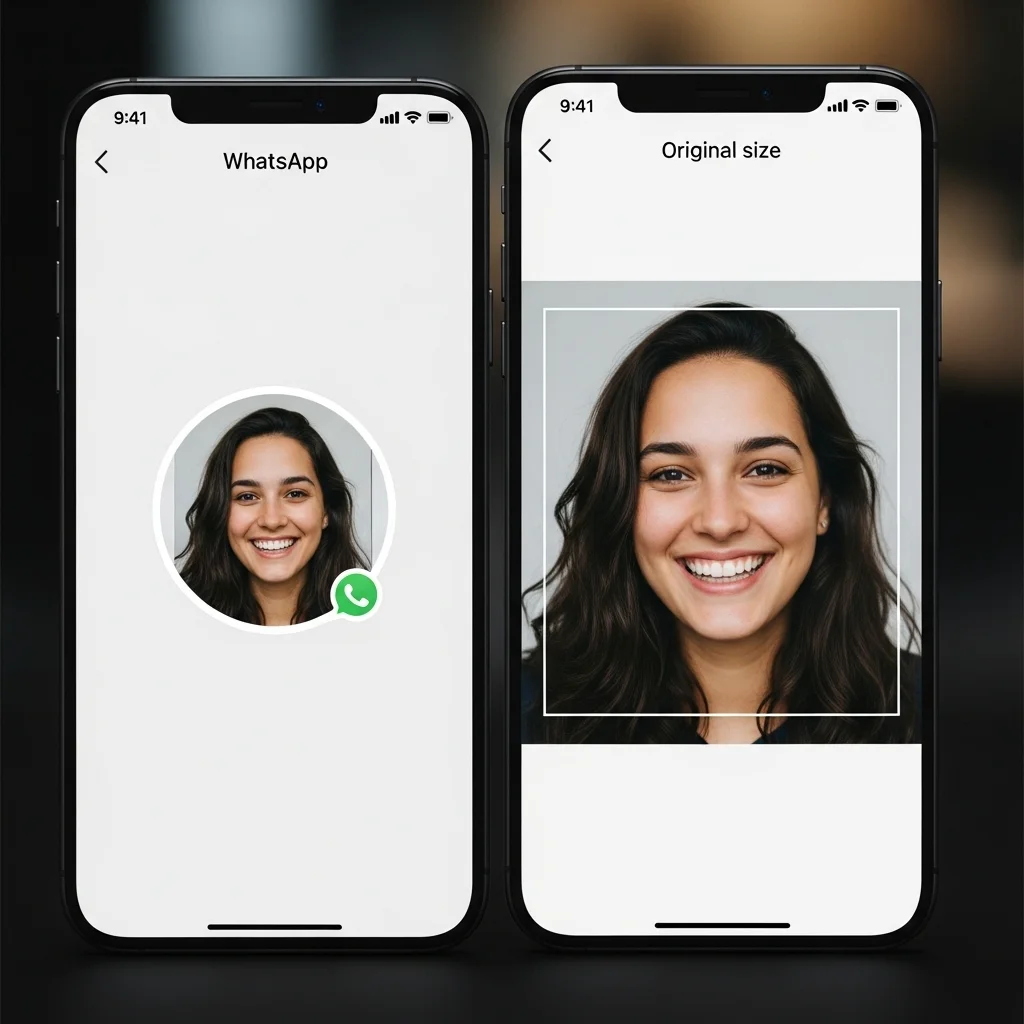
A lot of people wonder why WhatsApp wants a square file if profile pictures show up as circles. The answer is in how WhatsApp builds that circle. WhatsApp takes your square 640×640 pixel image and inscribes a circle within it, using the center of the square as the center of the circle. The corners of the square get hidden behind the circular mask — everything in the central circle is fully visible.
When composing or cropping your photo, keep in mind that the corners won’t show — whatever matters most should sit in the centre. Faces should be centered, text or logos should be placed within the central circular area, and important details shouldn’t be positioned in the corners.
The tool includes a circular preview so you can see exactly how your 640×640 photo will look before downloading — no guessing, no surprises after upload. Need more control over cropping? Our WhatsApp profile cropper lets you manually select the exact area to display.
How to Resize WhatsApp Profile Pictures Without Cropping

The No-Crop Challenge
Many photos aren’t naturally square. Camera photos are usually 4:3 or 16:9, and smartphone portraits tend to be 9:16 — none of them square. Fitting any of those shapes into a square through traditional cropping always means cutting something off. Group photos might cut off people at the edges, landscape scenery loses its breadth, and portrait shots lose headroom or footroom.
The no-crop approach solves this by adding content around your image rather than removing parts of it. Instead of trimming a 1920×1080 landscape down to 1080×1080 and losing width, the no-crop method scales the entire image down to fit inside 640×640 and fills the empty areas with background content — the full composition stays intact.
This preserves your complete original composition while meeting WhatsApp’s technical requirements. If you’d rather choose exactly what stays in the frame, the crop WhatsApp profile picture page gives you manual selection tools for that.
Blur Background Method
Blur background is the most-used no-crop option when resizing a WhatsApp DP. This method takes your original image, fits it proportionally into the 640×640 square, and fills the remaining space with a blurred version of the image itself. The result is a profile picture where the main subject sits sharp in the centre, framed by a soft blurred version of the same photo — it looks intentional rather than padded.
It works particularly well for portrait photos where you want to keep the full body in frame, or for scenery shots where context matters. The blurred edges create a natural frame that draws attention to the sharp central image. For landscapes, the blur background keeps the wide feel of the shot alive even inside a square frame. The blur is generated directly from your photo’s own colours and patterns, so the background ties into the image rather than clashing with it.
Color Fill and Border Options
Solid colour fills and gradient backgrounds are the other main no-crop option. Your full image sits centred inside the 640×640 square, and whatever empty space remains gets filled with a colour you choose. Popular options include white backgrounds for a clean, minimalist look, black backgrounds for dramatic effect, or colours that match your image’s dominant tones for a cohesive appearance.
For business profiles and logos especially, a solid fill gives a clean edge between your subject and the background — which tends to read more professionally than a blurred one. You can choose colours that align with your brand identity, personal style, or simply complement the colours in your original photo. If a flat colour feels too plain, gradient backgrounds blend two or more colours across the fill area — more visual interest, same clean framing.
Mirror and Reflection Effects
Mirror effects create symmetrical designs by reflecting portions of your image to fill the square space. A portrait that’s taller than it is wide, for example, gets its sides reflected outward to fill the square — the result has a symmetrical, almost kaleidoscope-like border that draws the eye in. What starts as a technical constraint turns into something that can actually make your profile photo stand out.
Reflection effects work best with images that have interesting patterns, textures, or colours worth repeating. Fashion shots, textured backgrounds, and anything with strong colour contrasts tend to look striking with a mirror fill. It’s not the right fit for every photo, but when it works, mirror effects give your WhatsApp DP a look that’s hard to achieve any other way.
Step-by-Step Guide to Resize WhatsApp DP Online
Step 1:Upload Your Images
Drag and drop your images into the upload area or click to browse your files. JPG, PNG, WebP, AVIF, BMP, GIF, and HEIC are all supported — whatever format your photo came off the camera in, it’ll work here. Upload one photo or a whole batch — all files run through the same settings at the same time.
Select Your Resize Method
As soon as your files land, the tool resizes them to 640×640. Pick Fill for a smart auto-crop to the square, or Fit to keep the whole image with a blur background or colour fill around it. Preview your resized image to see exactly how it will appear in WhatsApp’s circular display format.
Preview and Download
Download individual files or grab the whole batch as a ZIP. Open WhatsApp, go to your profile settings, select “Change Profile Photo,” choose your resized 640×640 image from your gallery, and apply. Once uploaded, WhatsApp syncs the new profile photo across all your devices straight away. Need a circular transparent PNG instead of a plain square? The WhatsApp DP Maker exports soft-edge circle PNGs with feathered transparent backgrounds — free, no account needed.
WhatsApp DP Resize Modes Explained
The tool offers four ways to resize image for WhatsApp DP to 640×640 pixels. Which one works best depends on your photo and how much control you want over the result.
Fit Mode
Fit scales your entire image down to fit inside the 640×640 square while keeping the original proportions intact. Nothing gets cropped. If your photo is wider than it is tall — a 16:9 landscape shot, for example — it fits the full width to 640 pixels and the height lands somewhere below 640, leaving space at the top and bottom. That space gets filled with a blur background, a solid colour, or a mirror effect depending on what you select.
Fit is the right mode when losing any part of the photo is not an option — group shots, wide scenery, full-body portraits, or any image where the edges matter.
Fill Mode
Fill crops your image to fill the entire 640×640 square with no empty space. The tool scales the image until the shorter side hits 640 pixels first, then trims the leftover from both sides of the longer dimension equally. A landscape photo gets trimmed from the left and right — a portrait gets trimmed from the top and bottom.
The result is a full-bleed square with no padding or background fill needed. Fill works best for portraits and headshots where the subject already fills the middle of the frame and the edges are less important.
Auto Crop White Space
Auto Crop scans the edges of your image for uniform white or near-white pixels and removes them before resizing to 640×640. It is designed for logos, product photos on white backgrounds, and scanned images that arrive with wide white margins.
Without Auto Crop, those margins eat into the final square and push your actual subject into a smaller portion of the 640×640 frame. With it, the white edges get trimmed automatically and your logo or product fills the square properly. If your image does not have significant border space, Auto Crop has no visible effect — it only removes what is genuinely uniform and empty at the edges.
Manual Crop
Manual Crop gives you direct control over which part of the image becomes the 640×640 output. The crop frame is preset to a 1:1 square ratio — the only ratio WhatsApp accepts for a profile picture — and it opens centred on your image. From there you can drag the frame to reposition it, or drag any corner or edge handle to resize it while the 1:1 lock keeps the proportions fixed.
Use the zoom slider to get closer to the image and make precise adjustments around faces, logo marks, or fine details. Zoom out to see the full image and get a wider view of what falls inside and outside the frame. Once the frame is where you want it, click Apply Crop to lock in the selection before downloading.
Hit Reset at any point to bring the frame back to its original centred position — handy if you have been adjusting and want to start over without re-uploading.
Manual Crop is the right choice when the subject is off-centre, when you are cropping to a specific face or element rather than the full image, or when Fit and Fill both give you a composition you are not happy with. It takes a few more seconds than the automatic modes but gives you a result that is exactly what you intended.
Change Format While You Resize Your WhatsApp DP
When you resize image for WhatsApp DP, you can also change the output format in the same step — no separate converter needed. The tool supports JPG, PNG, WebP, and AVIF as output formats. Select your format before downloading and the resized 640×640 file comes out in whichever format you choose, regardless of what you uploaded.
This matters for WhatsApp profile pictures specifically because WhatsApp applies its own compression to every photo you upload as a DP. The format you start with affects how much quality survives that compression pass. A well-chosen format going in means a sharper, cleaner result coming out.
JPG
JPG is the standard format for WhatsApp profile pictures and the right choice for most personal photos. It handles photographs with complex colour gradients and natural tones well, keeps file sizes small, and is accepted without issue on every version of WhatsApp across Android, iOS, and WhatsApp Web.
When WhatsApp compresses your uploaded DP, a JPG source gives it clean data to work with — the result holds up well at the sizes WhatsApp actually displays your photo. If you are resizing a WhatsApp DP from a PNG source, converting to JPG during the resize typically cuts the file size by 50–80% with no visible quality difference on screen. Smaller file means faster upload and less aggressive compression from WhatsApp on the other end.
PNG
PNG uses lossless compression, meaning no image data is thrown away when the file is saved. For WhatsApp DPs that contain logos, text, sharp geometric shapes, or anything with hard edges and flat colour areas, PNG preserves those crisp lines better than JPG.
A company logo on a white background, a graphic with bold lettering, or a digital illustration will all look cleaner as a PNG than as a JPG at the same file size. The trade-off is that PNG files are larger than JPG for photographs. For a portrait photo or any image with continuous tonal gradients, PNG does not offer a visible quality advantage and simply creates a bigger file. Use PNG when edge sharpness and colour accuracy matter more than file size — logos and graphics rather than photos.
WebP
WebP produces smaller files than JPG at equivalent visual quality. A WhatsApp DP resized and saved as WebP will typically be 25–35% smaller than the same image saved as JPG, with no perceptible difference in how it looks on screen. WhatsApp accepts WebP for profile picture uploads, and all current versions of Android and iOS handle the format without issue.
A smaller file going into WhatsApp gives the app less reason to compress heavily on the way out — which is the practical benefit for a DP specifically. If you are noticing that your profile photo looks slightly softer than expected after upload, switching the output format from JPG to WebP before resizing is worth trying.
AVIF
AVIF is the most efficient of the four formats. It compresses further than WebP while maintaining equal or better visual quality — a 640×640 WhatsApp DP in AVIF will often be 40–50% smaller than the same image in JPG. Newer Android devices and recent iOS versions support AVIF natively, and WhatsApp accepts it for profile picture uploads on supported devices.
If the same DP also ends up on a website or in a CMS, AVIF gives you the smallest file without giving up quality. If you are unsure which format to use, JPG is the safe default. WebP is the upgrade if file size and post-upload sharpness matter to you. PNG is the right call for logos and graphics. AVIF is the best option if your workflow and device support it.
Image Quality and Format Optimization
Best File Formats for WhatsApp Profile Pictures
File format affects how your WhatsApp DP looks after upload — it’s worth choosing deliberately. Not all formats behave the same way when WhatsApp processes them. JPG and PNG are the most universally compatible options. JPG keeps file sizes small while maintaining solid quality — the right choice for photos with a lot of colour and tonal variation. If your photo came as a PNG, converting it to JPG first can cut the file size by 50–80% without any visible quality difference — our PNG to JPG converter handles that in one step. PNG uses lossless compression and handles transparency, though WhatsApp doesn’t actually use the transparent areas in a profile photo — the circular frame sits on a white or themed background regardless.
WebP and AVIF squeeze files smaller than JPG at the same visual quality level — a genuine improvement if your device and workflow support them. Files upload faster and the display can come out marginally sharper, particularly on screens with high pixel density. HEIC is the default format for photos taken on newer iPhones, and while WhatsApp accepts HEIC files, converting to JPG ensures maximum compatibility across all platforms. This tool handles all four formats and can convert between them while it resizes — you don’t need a separate conversion step.
Resize WhatsApp DP Without Losing Quality
When you resize a photo down to 640×640, quality loss is always a risk — especially if the tool uses a poor algorithm or applies extra compression on top of WhatsApp’s own. Here’s what this tool does differently.
Higher-quality downscaling, not basic scaling. Most quick online resizers use a fast algorithm that smears fine detail. This tool uses a better method that preserves edges, hair texture, and text sharpness at 640×640 pixels.
No extra compression added. The tool exports your WhatsApp DP at full quality. WhatsApp will compress it further on upload — that’s unavoidable — but you want to start with the highest possible quality going in. A blurry starting file becomes a worse blurry file after WhatsApp touches it.
Start with the biggest file you have. If you have a photo at 3000×3000 or even 1920×1080, feed that version to this tool. Scaling down 3000px to 640px preserves far more detail than scaling up a 300px thumbnail. The resize direction matters as much as the algorithm.
JPG at high quality, or PNG for text and logos. For portrait photos, JPG keeps file size manageable without visible quality loss. For logos with sharp edges or text on your DP, PNG is worth the larger file — it won’t introduce the blocky artifacts JPG compression creates around hard lines.
The result: a 640×640 WhatsApp DP that looks crisp in the chat list thumbnail, clear in the full-size view, and holds up after WhatsApp’s own compression pass.
Understanding WhatsApp's Compression
Even a perfectly prepared 640×640 image gets compressed again by WhatsApp once you upload it — that’s the app reducing file sizes for faster transmission and lighter storage. This compression is more aggressive for images sent in chats than for profile pictures, but it still affects quality to some degree. The app typically compresses images to under 100KB regardless of their original file size.
Starting with a high-quality 640×640 image gives WhatsApp’s compression less visible damage to do. Don’t use images that have already been through compression — each round stacks the quality loss. A high-resolution original resized down to 640×640 gives WhatsApp enough pixel information that its compression barely shows. The resizing algorithms here are tuned to preserve edge sharpness and fine detail — so the 640×640 output holds up well even after WhatsApp applies its own compression pass.
Preventing Pixelation and Blurriness
A soft or pixelated profile photo almost always traces back to one of three things: a source image that’s too small, a low-quality original, or letting WhatsApp handle the resizing itself. Upload something smaller than recommended and WhatsApp has to invent pixel data to fill the gaps — which is what produces that blocky, soft look.
For a sharp result, always start with a larger photo and resize down to 640×640 — never up. Downscaling preserves image quality much better than upscaling. If the only photo you have is already at or below 640×640, the result will be limited by the source — use the highest-resolution version you can find. The tool handles both directions with quality interpolation, but there’s a ceiling to what upscaling can do — a high-resolution original scaled down will always look better.
Bulk Image Processing for WhatsApp Profile Pictures
Why Bulk Resize Multiple Images
Bulk processing makes a real difference when you’re resizing more than one or two WhatsApp DPs. That covers a few different situations: preparing profile photos for a full company WhatsApp Business directory, testing several options for your own DP, managing multiple personal or business accounts, or just sorting out a group of family photos in one go.
Instead of going through the upload-resize-download cycle for each photo individually, bulk processing runs them all at once with the same settings applied across the batch. Upload all your images in one batch, select your resize preferences once, and download everything as a ZIP file. It’s particularly useful for social media managers and business account owners who touch multiple images on a regular basis.
Maintaining Consistent Quality Across Batches
When resizing multiple images for WhatsApp profile pictures, consistency matters. All images in a batch should come out at the same dimensions and quality level — inconsistency in a team directory or group of accounts looks careless. The tool applies identical settings to every file in the batch, so the results look like they belong together. This is particularly important for business contexts where multiple team members’ profile pictures should have a cohesive, professional appearance.
Consistent aspect ratio handling carries through the whole batch automatically. Choose blur background and every photo in the batch gets the same blur intensity — you’re not rechecking settings between files. Colour fill options apply the same background colour across all files. When those profile photos appear together in a WhatsApp group or business directory, the visual consistency reads as deliberate and professional rather than haphazard.
ZIP Download for Convenient File Management
Downloading ten or twenty resized files individually takes far longer than it should. ZIP download wraps everything into a single archive — one click and the whole batch is on your device. All your resized WhatsApp DPs arrive together, ready to upload to cloud storage, share with a team, or move to a specific folder on your device.
Filenames are preserved in the archive, so you can still tell which resized file came from which original photo. That becomes genuinely useful when you’re working through a large batch or need to follow a naming convention for a business system. Extract the ZIP on your device to access all your perfectly sized WhatsApp profile pictures ready for upload.
WhatsApp Business Profile Picture Optimization
Professional Requirements for Business Profiles
Your WhatsApp Business profile photo is often the first thing a potential customer sees before they decide to message you. A personal DP can be anything — but a business profile needs to read clearly as professional, even as a small circular thumbnail in a chat list. Within the constraints of a 640×640 circle, it should tell someone what you do and give them a reason to trust the number they’re messaging. This typically means using your company logo, a professional headshot of the business owner, or a clear product image.
The 640×640 specification is identical for business accounts — but a blurry or poorly framed logo does more damage to a business profile than to a personal one. A soft or badly cropped profile photo signals to customers that the business doesn’t sweat the small stuff — which isn’t the impression you want to open with. Make sure your logo source file is high resolution, centred inside the circular display area, and still legible at thumbnail size — because that’s how most customers will encounter it.
Logo Optimization for Circular Display
Most company logos are designed as wide horizontal layouts, which don’t fit naturally into WhatsApp’s circular profile format. A horizontal logo gets its text cropped from the sides — a vertical one can lose the tagline or bottom element. Before resizing, map out which parts of the logo will sit inside the circle and which will fall in the cut-off corners — the name, the mark, and any tagline need to stay within the safe circular area.
If your full logo can’t survive the circular crop, create a square-optimised version just for WhatsApp — most brands have a compact mark or icon version that works well here. This might mean repositioning text below or above a logomark, adjusting the layout to a circular or square composition, or using just the logomark without text if the mark is recognisable enough on its own. The no-crop options — blur background or colour fill — let you preserve the full rectangular logo inside the 640×640 frame, with a background you can match to your brand palette.
Maintaining Brand Consistency Across Platforms
Whatever you put in the WhatsApp Business profile photo should match what’s on your other channels. Same logo, same colour scheme, same general treatment as Facebook, Instagram, and your website — customers who find you on multiple platforms should recognise you immediately. This consistency helps customers recognize your business immediately and builds trust through cohesive brand presentation.
Apply the same quality standards you’d use for any other professional platform — a blurry WhatsApp photo sitting next to a sharp Instagram profile looks like an oversight. 640×640 is enough resolution for a sharp result — there’s no technical reason to accept a soft or compressed-looking output. If the logo needs a fill background to fit the square, use a colour from your brand palette rather than a generic white or grey. Background colour, centring, and image sharpness are small details that add up — they’re what separates a polished brand presence from a cobbled-together one.
Rename Your WhatsApp DP Files in Bulk
When you process multiple WhatsApp DPs at once — for a team, multiple accounts, or a family group — you end up with a folder of files named IMG_4821.jpg, photo_edit_final.png, and a dozen variations that tell you nothing. The built-in rename tool runs alongside resizing, so you can sort and name your files the moment they come out.
Use the Sort By options to arrange your batch by upload order, name A→Z, or file size before confirming names.
Add a Prefix — Put the same label at the start of every filename. Set your prefix to “whatsapp-dp-” and your files come out named whatsapp-dp-sarah.jpg, whatsapp-dp-team.jpg. Clean and organised from the start.
Add a Suffix — Append something to the end of each filename. Adding “-640×640” gives you whatsapp-dp-logo-640×640.jpg, which makes the dimensions visible in the filename without opening the file.
Find and Replace — Already have a batch of files named with “profile_pic” in the name? Replace that text with “whatsapp-dp” across every file in the batch at once.
Auto Number — Upload ten team member photos and they come out numbered sequentially: team-01.jpg, team-02.jpg, team-03.jpg. No manual renaming, no duplicate names.
SEO Optimize — Converts filenames to lowercase, replaces spaces with hyphens, and strips special characters. Useful if the same WhatsApp DP files also end up on a website or CMS where clean filenames matter for search visibility.
Common Issues and Troubleshooting
Why WhatsApp Crops My Pictures
WhatsApp automatically crops pictures that don’t match its required 1:1 aspect ratio. Upload a photo straight from your camera roll and WhatsApp’s built-in editor will try to square it up by cropping inward from the centre. This automatic cropping often cuts off people at the edges of group photos, removes interesting scenery from landscape shots, or eliminates headroom or footroom from portraits.
The reason it crops is that WhatsApp needs a square to work from before it can render that circular display. The solution is to resize image for WhatsApp DP before uploading. WhatsApp doesn’t stretch or squish — it preserves the aspect ratio and removes content from whichever edges take it to a square, which means something you cared about will often end up cut. Resizing to 640×640 before uploading is the only way to control exactly what stays in frame — once it’s in WhatsApp’s editor, you’re working with whatever it decides to keep.
Fixing Blurry Profile Pictures
A blurry profile photo usually comes from one of three places: a source image that’s too small, a low-quality original, or a file that’s already been compressed several times. Always start from the highest-resolution version of the photo you have. If the result is soft or pixelated, go back to the original photo — not a version that’s already been sent through WhatsApp or downloaded from a social media feed — and resize that to 640×640. Images saved from WhatsApp chats have already been through compression — using them as a source compounds the quality loss and makes the blurriness worse.
Another common cause is heavy cropping on low-resolution images. Cutting a small section out of a larger photo and then resizing that crop up to 640×640 is the same as upscaling — you’ll lose sharpness the same way. Instead, use images where your subject already fills most of the frame, requiring minimal cropping. A photo from any modern smartphone camera has more than enough resolution to produce a crisp 640×640 DP — just avoid heavily zoomed or already-cropped versions.
Upload Errors and Format Issues
When WhatsApp rejects a profile photo upload, it’s almost always one of three things: an unsupported format, a corrupted file, or an image that’s below the 192×192 minimum. Standard formats — JPG, PNG, WebP, HEIC — are all accepted, but some obscure or proprietary formats can fail without much explanation. Converting your image to JPG or PNG before resizing typically resolves format-related upload errors.
Occasionally a file looks fine on your device but is silently corrupted — this shows up as an upload failure in WhatsApp even though the image previews normally. Re-exporting from your original photo app, or running the file through this resizer, creates a fresh copy that clears most corruption issues. WhatsApp hard-rejects anything below 192×192 — there’s no workaround short of using a different source image. This tool ensures every output meets WhatsApp’s technical specs, so the files it produces don’t trigger upload errors.
Privacy and Security in Browser-Based Processing
How Browser-Based Resizing Works
This tool resizes your WhatsApp DP photos entirely inside your browser — the files never leave your device. When you select a file, your browser reads it directly from local storage and runs all the processing through JavaScript on your own machine. The resizing, cropping, blur effects, and all other transformations happen on your device using your device’s processing power.
That’s a meaningful difference from tools that send your photos to a remote server for processing — your personal images stay on your device at every stage. Nothing travels over the internet, nothing gets saved to a third-party server, and no one else has access to what you’re resizing. Close the tab or navigate away and the session data clears from memory — there’s no cached copy left behind.
No Registration or Account Required
Most online image tools put registration, email verification, or an account barrier between you and what you actually came to do — this one doesn’t. Resize as many WhatsApp DPs as you need without handing over an email address, setting a password, or ending up on a mailing list. Upload, resize, download — no interruptions.
No account also means no tracking of which images you process, no usage profiling, and no data sitting on a server after your session ends. Each time you use the tool is an independent, anonymous session. Full functionality, no artificial limits, no nudge toward a paid plan — the tool just works.
No Watermarks on Free Tool
A lot of free online tools stamp their logo onto your output unless you upgrade — which defeats the point of editing a photo for a professional-looking profile. A watermarked WhatsApp DP is unusable for any purpose — personal or professional. This tool never adds a watermark. Process one photo or a hundred — the output is always clean.
Your WhatsApp profile pictures remain completely yours with no third-party branding attached. Whether it’s a personal DP or a WhatsApp Business logo, what you download is exactly what you processed — no extra branding from us. There are no hidden premium features or surprise watermarks after processing.
Frequently Asked Questions (FAQ)
What is the best size for WhatsApp profile pictures?
The optimal size is 640×640 pixels with a 1:1 aspect ratio — WhatsApp’s maximum supported resolution and the sharpest possible display on all devices. Anything below the 640×640 maximum can look noticeably soft on modern high-DPI phone screens, even if WhatsApp technically accepts it. For best results, always resize to 640×640 pixels to ensure maximum quality and clarity.
If you want to go beyond resizing — export a transparent circle PNG, write your name on the DP, or add a border or blur background — the free WhatsApp DP Maker handles all of that in the same browser, no signup needed.
Can I use rectangular images for WhatsApp DP?
WhatsApp requires a square 1:1 image for all profile pictures. If you upload a rectangular image, WhatsApp will automatically crop it to square, potentially cutting off important parts of your photo. To keep the full image intact, use a no-crop method that scales everything into the 640×640 square and fills empty space with a blur background, colour fill, or mirror effect. This preserves your entire original composition while meeting WhatsApp’s technical requirements.
Why does my WhatsApp profile picture look blurry?
Blurry WhatsApp profile photos are almost always caused by a source image that’s too small, already low-quality, or upscaled rather than downscaled. WhatsApp compresses every upload — if the starting image is already soft, that compression makes the problem more visible. Always resize down from a large photo, not up from a small one, and avoid using photos saved from social media feeds or WhatsApp chats as your source.
How do I resize WhatsApp profile pictures without cropping?
No-crop resizing adds background content around your image rather than cutting anything away — the full original composition fits inside the 640×640 frame. Blur background is the most popular option — it scales the full image to fit and fills empty space with a blurred version of the same photo, so the background ties naturally into the main image. Colour fills, gradient backgrounds, and mirror effects are all available as alternatives depending on your photo and preference.
Does WhatsApp Business require different profile picture sizes?
WhatsApp Business uses the same specifications as regular WhatsApp — 640×640 pixels with a 1:1 aspect ratio. The pixel requirements are identical, but a business photo gets judged on brand clarity and professionalism in a way a personal DP doesn’t. Business profiles should use logos, professional headshots, or clear product photos — not casual personal shots. The quality, composition, and branding considerations are simply higher when the photo represents your company to customers.
Can I process multiple images at once?
Yes — bulk processing runs multiple images at the same time with identical settings applied across the batch. Upload everything in one go, select your resize preferences once, and the tool handles the rest. Finished files can be downloaded one at a time or all together as a ZIP. It’s particularly useful for businesses preparing profile pictures for multiple team members or anyone who wants several options to choose from.
How do I resize image for WhatsApp DP quickly?
Upload your photo, pick Fit, Fill, Auto Crop, or Manual Crop mode, and download a clean 640×640 WhatsApp DP — the whole thing takes under ten seconds. No registration, no waiting, no software to install. It’s the fastest way to get a properly sized WhatsApp profile picture without letting the app do the resizing for you.
What is the WhatsApp DP aspect ratio?
The WhatsApp DP aspect ratio is 1:1 — a perfect square. This means the width and height of your image must be equal. The recommended square size is 640×640 pixels. WhatsApp then inscribes a circle within that square for display, which means the corners of your image will not be visible — keep faces, logos, and important details centred.
What is the minimum size for a WhatsApp profile picture?
WhatsApp requires a minimum of 192×192 pixels. Images smaller than that are rejected at upload. The 192-pixel minimum was also the older standard size, which is why some older guides still reference it — but for any modern smartphone display, 640×640 is strongly recommended. Images at 192×192 look noticeably softer on high-resolution phone screens.
Can I resize a WhatsApp DP without losing quality?
Yes, if you are starting from a high-resolution photo and resizing it down to 640×640 pixels. Downscaling preserves quality. The only scenario where you lose quality is when you try to resize a small image up to 640×640 — that requires the software to fill in pixel data it does not have, which softens fine details. Use the original, unedited photo from your camera for best results.
More Than Just the WhatsApp Profile Resizer
Just resized your image with our WhatsApp Profile Resizer? If you're preparing content for other platforms as well, explore these related resize tools, each built for the exact dimensions a platform requires.