
Bulk HEIC to PNG Converter — Free, Fast & No Signup
Convert iPhone HEIC Photos to PNG Instantly — No Watermark, No Registration, 100% Private
Got HEIC files from your iPhone that won’t open on Windows, Android, or your editing software? This free bulk HEIC to PNG converter handles multiple files at once — no account needed, no watermark added, nothing stored on any server.
- Bulk HEIC to PNG Conversion
- No Signup & No Watermark
- 100% Browser-Based & Private
- Download as ZIP or Individual Files
Welcome to Bulk Image Converter
Drag & Drop your images here or click to select files
✨ Supports: JPG, PNG, WebP, AVIF, BMP, SVG, GIF, HEIC
All processing happens in your browser. Please keep backup copies of your original files — we are not responsible for any file loss or conversion issues.
Welcome to Bulk Image Resizer
Drag & Drop your images here or click to select files
✨ Supports: JPG, PNG, WebP, AVIF, BMP, SVG, GIF, HEIC
Need to do more with your PNG files?
Compress your PNG to 100KB — reduce file size after converting
Resize PNG for Instagram Post — get it to 1080×1080px instantly
Crop PNG to Square (1:1) — perfect for profile pictures
What Is HEIC Format?

HEIC stands for High Efficiency Image Container. Apple introduced it in 2017 with iOS 11 as the default photo format for iPhone and iPad.
HEIC files are roughly 50% smaller than JPG while maintaining the same visual quality — making them perfect for saving storage on your device.
The problem is simple: HEIC is an Apple-first format. Open one on a Windows PC, Android phone, or most image editors and you’ll hit an “unsupported format” error instantly. That’s why millions of iPhone users search for a reliable HEIC to PNG converter every month — PNG just works everywhere.
Why Convert HEIC Images to PNG Format?
Converting HEIC to PNG is the fastest way to make your iPhone photos universally accessible. PNG is supported on every device, platform, and application without plugins, workarounds, or compatibility headaches.

Universal Compatibility
PNG works on all devices, browsers, and platforms without any issues. HEIC files from iPhones and iPads often can’t be opened on Windows PCs, Android devices, or older systems. Whether you’re sharing photos with a colleague on Windows or uploading images to a website, converting HEIC to PNG guarantees your files open anywhere — every single time. If you need JPG instead of PNG for wider compatibility, use our HEIC to JPG Converter — same speed, no signup.
Easy Sharing & Editing
PNG files share cleanly via email, social media, and messaging apps without triggering format errors. Most image editing software — Photoshop, Canva, Figma, GIMP — supports PNG natively, while HEIC support remains limited and inconsistent. When you batch convert HEIC to PNG, you eliminate the frustration of unsupported file errors before they happen. Most platforms prefer PNG or JPG uploads. Once converted, you can also compress your images to meet upload size limits or resize them for specific social media platforms.
Transparency Support
PNG supports full transparency through its alpha channel — something HEIC handles inconsistently across non-Apple platforms. For logos, icons, graphic overlays, and web design elements, PNG transparency is the industry standard. Converting your HEIC images to PNG ensures transparency is preserved perfectly across all platforms and applications. For web use, you may also want to convert PNG to WebP for better performance without losing transparency support.
HEIC vs PNG: Understanding the Difference
Choosing between HEIC and PNG comes down to one question: are you staying inside the Apple ecosystem or sharing beyond it? Here’s a clear breakdown of both formats.
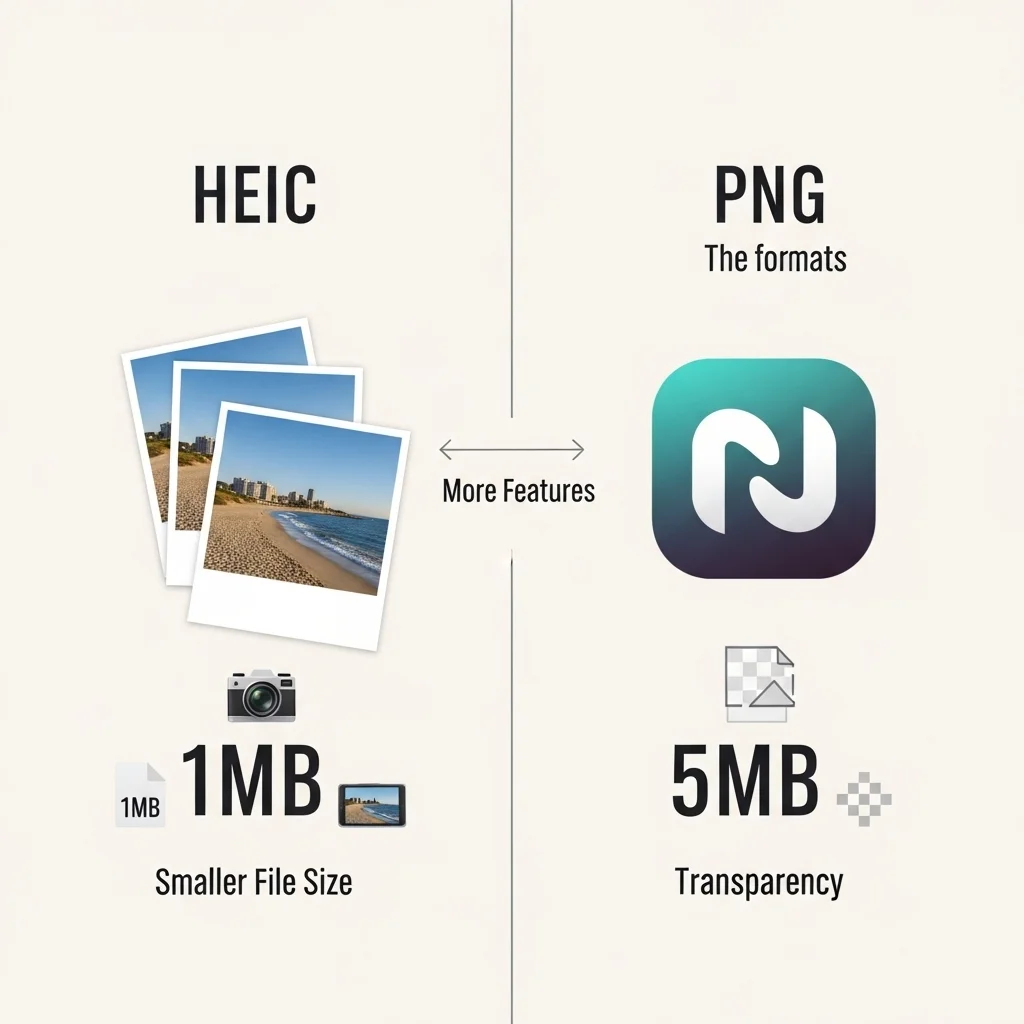
HEIC (High Efficiency Image Container)
HEIC was developed by Apple and became the default iPhone photo format in 2017. It delivers superior compression — files are up to 50% smaller than JPG — while supporting multiple images, transparency, and HDR data in a single file.
Best for: Storing photos within the Apple ecosystem — iPhone, iPad, and Mac.
Limitations:
- Limited compatibility outside Apple devices
- Not supported natively on Windows or Android
- Restricted support in most image editors without plugins
- Causes “unsupported format” errors when shared cross-platform
Use HEIC when: You’re staying within Apple devices and need efficient on-device storage.
PNG (Portable Network Graphics)
PNG (Portable Network Graphics) was developed in 1996 and remains one of the most universally supported image formats available. It uses lossless compression — meaning zero quality loss — and supports full alpha channel transparency across all platforms.
Best for: Sharing, editing, and publishing images across any device or platform.
Advantages:
- Opens on every OS, browser, and device without plugins
- Lossless quality — no degradation during saves or edits
- Full transparency support for logos, icons, and web graphics
- Natively supported in every major image editor
- Compatible with Windows, Android, Mac, Linux, and all browsers
Use PNG when: You need to share images across platforms, edit in any software, upload to websites, or send to anyone not using Apple devices — which is most of the world.
How to Convert HEIC to PNG Online Free — 3 Easy Steps
Converting HEIC to PNG doesn’t require software downloads, account creation, or technical knowledge. Our free bulk HEIC to PNG converter works entirely in your browser — just upload, convert, and download.

Step 1: Upload Your HEIC Files
Drag and drop your HEIC files onto the converter or click to browse your device. You can upload multiple files at once — our batch HEIC to PNG converter handles as many files as you need in a single session.
Step 2: Automatic Conversion
Once uploaded, conversion starts instantly and automatically. There’s nothing to configure — every HEIC file is converted to high-quality PNG format in seconds, directly in your browser. No file is ever uploaded to a server.
Step 3: Download Your PNG Files
Once converted, download your PNG files individually with a single click, or grab everything at once as a ZIP file. Both options are available instantly — no waiting, no email delivery, no signup required.
Who Needs Bulk HEIC to PNG Conversion?
Bulk HEIC to PNG conversion isn’t just for tech users. Here’s who benefits most from batch converting iPhone photos to PNG format:
- Windows users — HEIC files don’t open natively on Windows without Microsoft’s paid HEIC codec. Converting HEIC to PNG on Windows eliminates this problem completely — or if you prefer a smaller file size, our HEIC to JPG Converter works just as seamlessly on any Windows browser
- Photographers & content creators — shooting on iPhone generates hundreds of HEIC files. Batch HEIC to PNG conversion saves hours of manual work, and once converted you can instantly compress your PNG batch to an exact file size before delivering to clients.
- Web designers & developers — PNG is the standard for web graphics, icons, and UI elements. Bulk converting HEIC to PNG ensures files are web-ready instantly, and for even better page performance you can take the extra step of running them through our PNG to WebP Converter without losing transparency support.
- Social media managers — most platforms prefer or require JPG or PNG uploads. Converting iPhone HEIC photos to PNG before uploading avoids compression artifacts and format rejections — then resize your images for Instagram or crop them to the right Story dimensions in seconds.
- Android users — HEIC files from iPhones won’t open on Android devices. Converting to PNG makes sharing between iPhone and Android seamless, and our Bulk Image Converter handles the entire batch at once so you’re never stuck file by file.
Small business owners — product photos taken on iPhone need to be PNG or JPG for e-commerce platforms like Shopify, Amazon, and Etsy. After converting, use our Resize for Amazon Product or Resize for Shopify Product tools to get your images listing-ready in one extra step.
Frequently Asked Questions (FAQ)
Is this HEIC to PNG converter really free?
Yes — completely free with no hidden costs, no premium tiers, and no watermarks added to your converted files. Every feature is available to every user at no charge.
Do I need to create an account or sign up?
No. This is a no signup HEIC to PNG converter. Just open the page, upload your files, and convert. No email, no registration, no account required — ever.
Will my converted PNG files have a watermark?
Never. This HEIC to PNG converter adds no watermark to any converted file. What you convert is exactly what you download — clean, full-quality PNG files.
Can I convert multiple HEIC files at once?
Yes. This is a bulk HEIC to PNG converter built specifically for batch processing. Upload as many HEIC files as you need, convert them all simultaneously, and download individually or as a single ZIP file.
How do I convert HEIC to PNG on Windows?
Windows does not support HEIC natively. The easiest way to convert HEIC to PNG on Windows is to use an online converter like this one — no software installation needed. Just open it in any browser, upload your HEIC files, and download your PNG files instantly.
How do I convert HEIC to PNG on iPhone?
You can convert HEIC to PNG directly from your iPhone browser. Open this converter, tap to upload your HEIC photos from your camera roll, and download the converted PNG files — no app download needed.
Is my data safe? Are my files stored anywhere?
Your files are never stored, uploaded to a server, or accessed by anyone. All conversion happens entirely in your browser using local processing. The moment you close the tab, everything is gone.
Does converting HEIC to PNG reduce image quality?
No. PNG uses lossless compression, meaning your converted PNG files retain 100% of the original image quality. No detail, color, or sharpness is lost during conversion.