

Convert PNG to JPG Online – Free Batch Converter
Fast, secure, and watermark-free image conversion in your browser
- Batch convert multiple PNG files at once
- No watermarks, file limits, or hidden fees
- Preserves image quality and resolution
- 100% private—files never leave your device
Welcome to Bulk Image Converter
Drag & Drop your images here or click to select files
✨ Supports: JPG, PNG, WebP, AVIF, BMP, SVG, GIF, HEIC
How to Convert PNG to JPG in 3 Simple Steps
Step 1: Upload Your Files
Click "Choose Files" or drag and drop your PNG images directly into the converter. You can select a single image or multiple files for batch processing.
Step 2: Automatic Batch Conversion - Convert All Files Instantly
Click on "Select Formats to Convert" and check your desired formats, your images process instantly.
Step 3: Download Converted JPG Images - Single Files or ZIP Package
Download converted files individually or grab them all at once in a convenient ZIP archive for bulk downloads.
Batch Convert PNG to JPG – Save Hours of Work
Need to convert dozens or hundreds of PNG files to JPG format? Our batch PNG to JPG converter is designed specifically for high-volume image processing.
Why Batch Conversion Matters
Manual one-by-one conversion wastes valuable time. Upload all your PNG images simultaneously instead of processing them individually. This approach is perfect for photographers managing event galleries, designers working with multiple mockups, or content creators organizing image libraries.
How Bulk PNG to JPG Conversion Works
Select as many PNG files as you need to convert to JPG from your computer—there’s no file count limit.
The converter processes all images simultaneously using parallel processing technology. Once complete, your converted JPG files package automatically into a downloadable ZIP archive. Simply extract the ZIP folder to access all your newly converted images, maintaining their original filenames for easy organization.
Real-World Batch Conversion Use Cases
For Photographers: Batch convert entire photo shoots from PNG to JPG format for space-saving client delivery or online galleries.
For Web Developers: Optimize website image assets in bulk to reduce page load times and improve site performance.
For E-commerce Sellers: Process product images efficiently for marketplace listings that require JPG format.
For Archival Projects: Compress large image collections to save cloud storage space without sacrificing visual quality.
Convert PNG to JPG Without Losing Quality
When you convert PNG to JPG without losing quality, preservation becomes the top priority. Here’s how we maintain exceptional image clarity throughout the conversion process.
Understanding Compression Differences
PNG uses lossless compression, meaning the image retains perfect quality but results in larger file sizes. JPG uses lossy compression, which strategically removes imperceptible visual data to create much smaller files. Learn more about JPEG compression standards from W3C.
Our converter applies intelligent compression algorithms to minimize quality loss while maximizing file size reduction.
Quality Control at Your Fingertips
The built-in quality slider gives you complete control when converting PNG to JPG, balancing compression with clarity. Settings above 90% preserve near-original quality, producing JPG files virtually indistinguishable from the source PNG. Settings between 70-85% offer excellent visual quality with significantly smaller file sizes—ideal for web use where fast loading matters.
When to Prioritize High-Quality Conversion
Choose maximum quality settings (90-100%) for:
- Professional photography portfolios and client deliverables
- Print-ready materials requiring sharp detail
- Detailed graphics, illustrations, and technical diagrams
- High-resolution product images for e-commerce platforms
- Marketing materials and promotional content
- Any project where image clarity directly impacts viewer perception
Smart Quality Optimization Tips
Start with 85% quality for general web use—this sweet spot balances visual fidelity with file efficiency. For social media uploads, 75-80% works perfectly since platforms apply their own compression anyway. Test a single image first when working with critical projects to ensure the quality level meets your standards before batch processing.
PNG to JPG Converter No Watermark – 100% Clean Output
Your converted images arrive completely watermark-free, every single time.
Why Watermark-Free Matters
Many online conversion tools embed logos, watermarks, or promotional text into your converted files unless you purchase premium access. These unwanted additions ruin professional presentations, marketing materials, and personal projects. We believe your images should remain yours—unbranded, unmarked, and ready for immediate use.
What You Actually Get
Every JPG file you download is:
- Completely free of watermarks, logos, or branding
- Ready for commercial or personal use without restrictions
- Yours to own with full rights—no licensing complications
- Available without registration, account creation, or email signup
- Unlimited—convert as many files as you want, forever
Professional Output You Can Trust
Use converted images confidently in client presentations, on your website, in printed materials, or anywhere else. No embarrassing watermarks to explain or crop out. No branding that undermines your professional image. Just clean, high-quality JPG files exactly as you need them.
Why Convert PNG to JPG? Practical Benefits Explained
Your converted images arrive completely watermark-free, every single time.
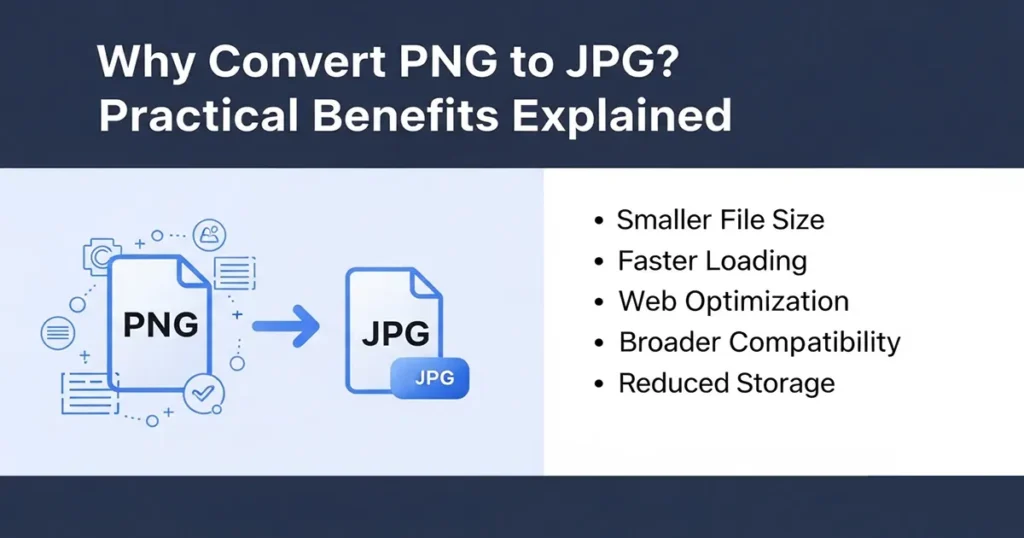
Dramatically Smaller File Sizes
When you convert PNG to JPG, files become typically 50-75% smaller than the original PNG format, making JPG the go-to choice for web use, email attachments, and cloud storage.
A 5MB PNG photograph often converts to a 1-2MB JPG at high quality—a 60-80% file size reduction. Smaller files load faster on websites, consume less mobile data, and make file sharing significantly easier.
Universal Compatibility Across All Platforms
JPG is the most widely supported image format in existence. Every web browser, email client, image viewer, social media platform, and editing application recognizes JPG files instantly. This universal compatibility eliminates format-related technical issues and ensures your images display correctly for every viewer, regardless of their device or software.
When You Should Keep PNG Format
Some situations require PNG’s unique advantages:
- Images with transparent backgrounds (logos, icons, overlays)
- Graphics requiring absolute lossless quality
- Images containing text or sharp geometric edges
- Designs destined for further editing
- Screenshots with fine text detail
If transparency or pixel-perfect accuracy is essential, stick with PNG. For everything else, JPG offers superior practicality.
Best Use Cases for JPG Format
Website Images and Blog Content: Fast-loading JPG images improve page speed, enhance user experience, and boost SEO rankings. Google’s image optimization guide recommends using efficient formats like JPG for better performance.
Social Media Posts: Platforms like Instagram, Facebook, and Twitter optimize JPG files efficiently while maintaining visual appeal.
Email Attachments: Smaller JPG files attach quickly and don’t fill up recipients’ inboxes unnecessarily.
Photo Sharing and Online Galleries: Share more images using less storage space and bandwidth.
- 4×6 prints for physical photographs
- Product photos (high-resolution 3000×3000 for e-commerce)
Background Images: Website backgrounds, presentation slides, and desktop wallpapers benefit from JPG’s efficient compression.
Fastest PNG to JPG Converter Technology
Speed matters when you need to convert PNG to JPG for multiple files or when working against tight deadlines.
Browser-Based Processing Advantage
Our PNG to JPG converter runs entirely in your web browser using cutting-edge JavaScript technology. Unlike traditional online tools that upload files to remote servers for processing, our approach keeps everything local. This eliminates upload wait times, server queue delays, and download bottlenecks entirely.
Real Performance Benefits
- Zero Upload Time: Files don’t travel to servers, so conversion starts instantly
- No Download Delays: Converted files generate immediately in browser memory
- Parallel Processing: Multiple files convert simultaneously, not sequentially
- Works Offline: Once the page loads, internet connection becomes optional
- Scalable Speed: Performance depends on your computer’s power, not server congestion
Large batches of high-resolution images convert in seconds, not minutes. A 50-file batch that might take 5 minutes on server-based tools processes in under 30 seconds locally.
When You Should Keep PNG Format
Some situations require PNG’s unique advantages:
- Images with transparent backgrounds (logos, icons, overlays)
- Graphics requiring absolute lossless quality
- Images containing text or sharp geometric edges
- Designs destined for further editing
- Screenshots with fine text detail
If transparency or pixel-perfect accuracy is essential, stick with PNG. For everything else, JPG offers superior practicality.
Optimized for Modern Browsers
The converter leverages WebAssembly and modern browser APIs for maximum efficiency. Works flawlessly in Chrome, Firefox, Safari, and Edge—no plugins or extensions required.
Complete Privacy and Security for Your Images
Your images never leave your device. Here’s how we guarantee absolute privacy.
Client-Side Processing Explained
All conversion happens locally in your browser using JavaScript. Files are processed directly in your computer’s memory—nothing uploads to our servers, third-party services, or cloud storage. The conversion code runs on your machine, not on remote servers.
What Complete Privacy Means
- Zero Data Collection: We don’t see, access, or store your images
- No Server Uploads: Files never transmit over the internet
- No Tracking: We don’t monitor what you convert or how often
- Safe for Sensitive Content: Confidential business documents, personal photos, or private materials remain completely secure
- No Internet Required: Once loaded, the tool works offline
Perfect for Confidential Work
Ideal for converting:
- Medical imaging and patient records
- Legal documents and evidence photos
- Financial reports and proprietary designs
- Personal or family photographs
- Unreleased product images or marketing materials
- Any content requiring discretion
Free PNG to JPG Converter – Premium Features at Zero Cost
Unlimited Conversions Forever
Convert one file or one thousand files—there are no daily limits, monthly caps, or conversion quotas. Use the tool as often as you need, whenever you need it, without ever hitting a paywall or premium upgrade prompt.
No File Size Restrictions
Upload images of any resolution or file size. Whether you’re converting smartphone snapshots or 50-megapixel professional camera exports, our tool handles them efficiently. Common online converters limit uploads to 5MB or 10MB per file—we don’t impose artificial restrictions.
Advanced Features Included
Everything you’d expect to find in paid software:
- Custom quality settings with precise control
- Batch processing for unlimited files
- ZIP archive creation for bulk downloads
- Drag-and-drop file upload interface
- Preview file size estimates before converting
- Filename preservation for easy organization
- Multiple format support beyond just PNG and JPG
No Hidden Catches
No trial periods that expire. No watermarks after the first five conversions. No “free tier” that forces upgrades. Just a genuinely free tool that respects your needs and your budget.
PNG vs JPG – Understanding Format Differences
Making informed format choices requires understanding what makes each format unique.
PNG Format Characteristics
Advantages:
- Lossless compression maintains perfect image quality
- Supports full alpha channel transparency
- Better for text, sharp edges, and geometric shapes
- Ideal for logos, icons, and graphic design elements
- Allows unlimited editing without quality degradation
Disadvantages:
- Much larger file sizes (often 3-5x bigger than JPG)
- Slower website loading times
- Consumes more storage space
- Overkill for most photograph use cases
JPG Format Characteristics
Advantages:
- Significantly smaller file sizes (60-80% reduction typical)
- Faster webpage loading and better user experience
- Universal compatibility across all platforms
- Efficient for photographic content
- Widely accepted by all online services
Disadvantages:
- Lossy compression removes some image data
- No transparency support (converts to solid background)
- Quality degrades with repeated editing and saving
- Less ideal for images with text or sharp lines
File Size Comparison Examples
When converting PNG to JPG, a typical 3000×2000 pixel photograph shows dramatic size differences:
- PNG format: 4-6 MB
- JPG at 95% quality: 1.5-2 MB
- JPG at 85% quality: 800KB-1.2MB
- JPG at 75% quality: 400-700KB
The visual difference between 95% and 85% JPG quality is minimal for most viewers, but the file size savings are substantial.
PNG to JPG Converter FAQs
Does converting PNG to JPG reduce quality?
When converting PNG to JPG, the JPG format uses lossy compression, so there’s minimal quality loss during conversion. At quality settings above 90%, the difference is virtually unnoticeable to human eyes. Most users find 85% quality perfectly acceptable for web use and general purposes.
Can I convert PNG to JPG without losing transparency?
No. JPG format doesn’t support transparency. Transparent areas automatically convert to a solid background color (typically white). If you need transparency, keep your images in PNG format or consider using WebP format instead.
How many PNG files can I convert at once?
There’s no artificial limit. The only constraint is your browser’s available memory—modern computers easily handle 100+ files simultaneously. For extremely large batches (500+ files), consider splitting them into smaller groups for optimal performance.
Do I need to install software or plugins?
No installation required. This is a web-based tool that runs entirely in your browser. No downloads, plugins, extensions, or system modifications necessary. Simply open the page and start converting.
Is this converter really completely free?
Yes, absolutely. No hidden costs, no premium tiers, no watermarks after X conversions, no time-limited trials. Convert unlimited files forever at no charge.
Are my images truly secure and private?
Completely. All processing happens locally in your browser using JavaScript. Images never upload to servers, ensuring 100% privacy. This makes our tool ideal for sensitive or confidential image conversion.
What quality setting should I use?
For most purposes, 85% quality provides an excellent balance between file size and visual quality. Use 90-95% for professional work or print materials. Use 75-80% for web thumbnails or situations where file size matters most.
Can I convert other formats besides PNG?
While this tool specializes in PNG to JPG conversion for optimal performance, many browsers support additional input formats. The converter automatically detects and handles various image formats when uploaded.
Tips for Optimal Conversion Results
Choosing the Right Quality Setting
When converting PNG to JPG, match quality levels to your specific use case:
- 95-100% quality: Professional photography, client deliverables, print materials
- 85-94% quality: Website images, social media, online portfolios, marketing materials
- 70-84% quality: Email attachments, thumbnails, preview images, archive copies
Reduce File Size Even Further
Beyond quality adjustment, consider these optimization strategies:
- Resize images to appropriate dimensions before conversion (don’t upload 4000px images if you only need 1200px)
- Crop unnecessary whitespace or background areas
- Convert screenshots at 75-80% quality—they remain perfectly readable
- Use batch processing with consistent settings for visual uniformity across image sets
Maintain Organization During Bulk Conversion
The converter preserves original filenames, making organization effortless. For best results:
- Name files descriptively before uploading
- Group similar images together for batch processing
- Use the ZIP download for large batches to keep files organized
- Create separate conversion batches for different quality requirements
The visual difference between 95% and 85% JPG quality is minimal for most viewers, but the file size savings are substantial.
Test Before Processing Large Batches
When working with important projects, convert a single sample image first. Review the quality, check the file size, and verify the output meets your expectations. Once satisfied, process the remaining images with confidence knowing the results will match your test.
The visual difference between 95% and 85% JPG quality is minimal for most viewers, but the file size savings are substantial.
Optimize for Specific Platforms
Different platforms have different requirements:
- Instagram: 1080×1080px at 80-85% quality
- Facebook: 2048px wide at 85% quality
- Email newsletters: 600-800px wide at 75-80% quality
- Website headers: Full width at 85-90% quality
- Product images: Platform-specified dimensions at 90% quality
The visual difference between 95% and 85% JPG quality is minimal for most viewers, but the file size savings are substantial.
Need to Resize Your Converted JPG Images?
After converting PNG to JPG, you might need to resize images for specific platforms or purposes. We offer specialized resizing tools for common use cases:
Social Media Profile Pictures
- Resize for Discord Profile – Optimize images for Discord avatars and server icons (128×128 to 1024×1024)
- Resize for WhatsApp Profile – Perfect square format for WhatsApp profile photos and status images
Print and High-Resolution Images
- Resize to 4×6 Print Size – Standard photo print dimensions (1200×1800 or 1800×1200 pixels at 300 DPI)
- Resize to 3000×3000 Pixels – High-resolution square format for professional photography and large prints
All our resizing tools maintain image quality, support bulk processing, and work directly in your browser with no uploads required.