

Resize YouTube Banner to 2560×1440 Pixels - Free Bulk Tool
Perfect Your YouTube Channel Art with Safe Zone Optimization for All Devices
Resize YouTube banner images to the recommended 2560×1440 dimensions instantly with our free tool.. Our free bulk tool ensures your channel art displays perfectly across TV, desktop, tablet, and mobile with safe zone guidance. No watermarks, no registration—just professional results in seconds.
- No watermarks
- No Registration
- No Signup
- Universal compatibility
- Instant ZIP Download
- 100% Private: Browser-Only Processing
Welcome to Bulk Image Resizer
Drag & Drop your images here or click to select files
✨ Supports: JPG, PNG, WebP, AVIF, BMP, SVG, GIF, HEIC
All processing happens in your browser. Please keep backup copies of your original files — we are not responsible for any file loss or conversion issues.
Welcome to Bulk Image Resizer
Drag & Drop your images here or click to select files
✨ Supports: JPG, PNG, WebP, AVIF, BMP, SVG, GIF, HEIC
How to Bulk Resize Images for YouTube Channel Art in 3 Steps
Step 1: Upload Your Images to Resize YouTube Banner
Drop your image files or click to browse. Our tool supports JPG, PNG, WebP, AVIF, BMP, SVG, GIF, and HEIC formats. Upload single images or process multiple banners simultaneously with our bulk resizing feature.
Step 2: Automatic Resizing to 2560×1440
When you resize YouTube banner images with our tool, they're instantly converted to YouTube's recommended 2560×1440 channel art dimensions.
Step 3: Download Individually or as ZIP
Get your resized YouTube banner files immediately after processing." Keyword Added: +1 "resize youtube banner" (variation) Download files one by one or grab all your channel art images in a single ZIP file for convenient batch processing.
Understanding YouTube Banner Size and Dimensions
When you resize YouTube banner images, understanding the platform’s specific dimension requirements ensures correct display across all devices.. The recommended youtube banner size is 2560×1440 pixels with a 16:9 aspect ratio, while the minimum accepted youtube channel art size is 2048×1152 pixels. These dimensions ensure your banner looks professional whether viewers access your channel from a smartphone, tablet, desktop computer, or smart TV.
The 2560×1440 youtube banner resolution provides the full canvas for creative expression while guaranteeing compatibility with YouTube’s multi-device display system. Using smaller dimensions may result in pixelation on larger screens, while images that don’t meet the minimum requirements will be rejected during upload.
YouTube accepts several file formats for channel art including JPG, PNG, BMP, and non-animated GIF files. The maximum youtube banner file size is 6MB, which provides ample space for high-quality visuals without compromising upload speed or page load performance.
YouTube Banner Safe Zone - Critical for Multi-Device Display
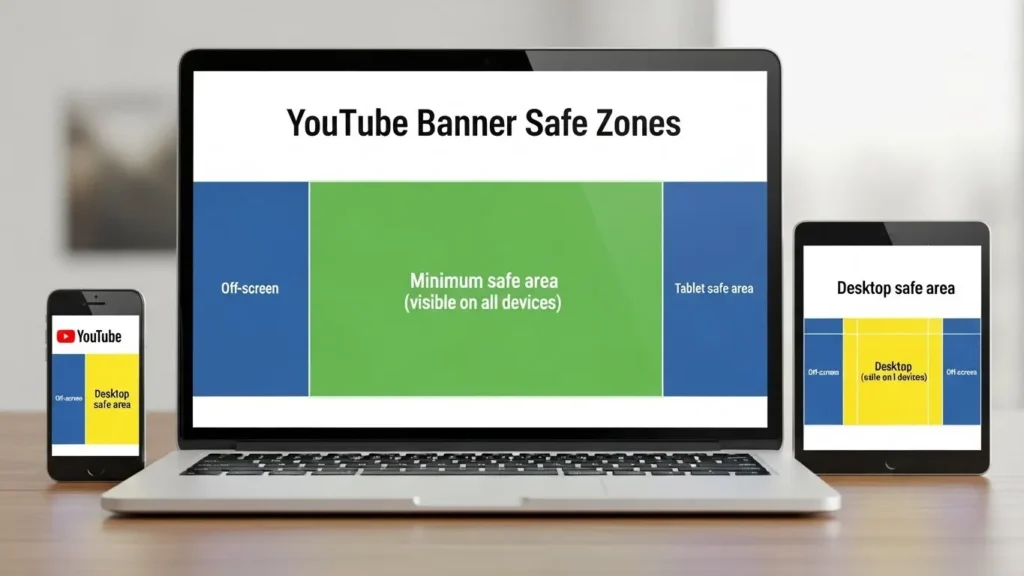
What Is the YouTube Banner Safe Zone?
When you resize YouTube banner graphics, the safe zone refers to the central 1546×423 pixel area of your 2560×1440 channel art that remains visible across all devices. This safe area is the only guaranteed visible portion when viewers access your channel from mobile phones, which have the smallest display window for banners.
Understanding the youtube banner safe area is essential for effective channel branding. Any text, logos, faces, calls-to-action, or critical visual elements placed outside this zone may be cropped on smaller devices, undermining your channel’s professional appearance and message clarity.
Why the Safe Zone Matters
YouTube automatically crops your banner differently depending on the viewer’s device. While TV viewers see your entire 2560×1440 banner, mobile users only see the center portion. Placing your channel name, logo, or important text outside the safe zone means mobile viewers—often the majority of YouTube’s audience—won’t see these critical branding elements.
The youtube banner safe zone template strategy ensures your most important visual elements remain visible whether someone discovers your channel on their phone during a commute or on their 4K TV at home. This consistency strengthens brand recognition and delivers a professional viewing experience across all platforms.
Designing Within Safe Zone Constraints
Effective safe zone design balances the central focus area with the extended canvas. Place your primary branding elements—channel name, logo, tagline, and key imagery—within the 1546×423 safe zone. Use the surrounding space for complementary design elements, background patterns, or atmospheric visuals that enhance the overall aesthetic without carrying critical information.
Consider creating layered compositions where the safe zone contains your essential message while the full 2560×1440 canvas tells a broader visual story. This approach ensures functionality on mobile while rewarding desktop and TV viewers with a richer, more immersive banner experience.
YouTube Channel Art Dimensions Across Different Devices
TV Display - Full Banner Visibility
When you resize YouTube banner images to 2560×1440 pixels, Smart TVs and YouTube’s TV app display the complete banner without any cropping.. This youtube banner tv display provides the maximum canvas for creative expression, making it ideal for immersive background imagery, extended brand narratives, or cinematic compositions that leverage the full widescreen format.
When designing for TV viewers, consider that they’re typically watching from a distance and may be using your channel as background entertainment. High-contrast elements and bold visual hierarchies work better than fine details or small text.
Desktop Display - Horizontal Strip View
After you resize YouTube banner files correctly, desktop browsers show a 2560×423 pixel horizontal strip of your channel art. This youtube banner desktop size provides excellent width while maintaining enough height to display logos and channel names clearly. Desktop viewers represent a significant portion of YouTube’s audience, particularly for educational content, tutorials, and professional channels.
The desktop view crops the top and bottom portions of your full banner while preserving the entire width. Design elements positioned in the vertical center will always appear on desktop, making horizontal compositions more effective than vertical layouts.
Tablet Display - Medium Crop
Tablets display 1855×423 pixels of your banner, offering more width than mobile but less than desktop. This intermediate youtube banner dimensions view accounts for devices like iPads, Android tablets, and 2-in-1 laptops used in landscape orientation.
Tablet viewers often engage more deeply with content than mobile users, browsing channel libraries and playlists. Ensure your branding elements work effectively in this mid-range display to capture this engaged audience segment.
Mobile Display - Smallest Safe Zone
Mobile phones show only 1546×423 pixels—the smallest display window and the defining constraint for your youtube banner mobile display strategy. With mobile traffic dominating YouTube viewership, this dimension should drive your primary design decisions.
Mobile viewers scroll quickly through channels and make snap judgments about content quality based on visual presentation. Clear, bold branding within the safe zone captures attention and communicates professionalism even on small screens during rapid browsing sessions.
YouTube Banner Requirements - Technical Specifications
Recommended vs Minimum Dimensions
YouTube recommends 2560×1440 pixels as the optimal youtube channel art dimensions for maximum quality and device compatibility. For the most current specifications, refer to YouTube’s official channel customization guidelines, which provide detailed technical requirements and best practices. However, the platform accepts a youtube banner minimum size of 2048×1152 pixels. While minimum dimensions will display correctly, they may appear slightly less sharp on large screens or high-resolution displays.
Always use the recommended 2560×1440 resolution when possible. This ensures crisp display on 4K TVs and Retina displays while providing the full creative canvas for sophisticated banner designs that leverage the complete visible area across all device types.
Aspect Ratio Explained
The youtube banner aspect ratio is 16:9, the standard widescreen format used across modern displays. This ratio matches HD and 4K television screens, computer monitors, and landscape-oriented mobile devices, ensuring your banner integrates seamlessly with YouTube’s interface without distortion or letterboxing.
Maintaining the 16:9 aspect ratio is crucial. Images with different ratios will be automatically cropped or stretched by YouTube, potentially cutting off important elements or creating visual distortion that undermines your channel’s professional appearance.
File Format and Size Limits
YouTube accepts JPG, PNG, BMP, and non-animated GIF formats for channel art. PNG is recommended for banners containing text, logos, or graphics requiring transparency, while JPG works well for photographic backgrounds. The maximum youtube banner file size is 6MB, providing sufficient space for high-quality images without excessive compression.
Large file sizes can slow upload times and affect your channel’s load performance. If your banner exceeds 6MB, compress the image using quality optimization tools before upload. Most well-optimized banners remain under 2MB while maintaining excellent visual quality.
Upload Requirements Summary
Meeting youtube banner upload requirements ensures smooth channel customization without rejections or technical issues. Your image must be at least 2048×1152 pixels (preferably 2560×1440), use an accepted file format, stay under 6MB, and maintain a 16:9 aspect ratio. These specifications balance quality, compatibility, and performance across YouTube’s global platform.
Best Practices for YouTube Banner Design
Positioning Critical Elements in the Safe Zone
Strategic element placement determines whether your youtube banner design tips translate into effective channel branding. Position your channel name, logo, upload schedule, and call-to-action within the 1546×423 safe zone center. This guarantees visibility across all devices and ensures mobile viewers—your largest audience segment—receive your complete brand message.
Create visual hierarchies that guide the eye toward your most important information first. Use size, contrast, and positioning to make your channel name immediately recognizable, followed by supporting elements like taglines or social media handles that provide additional context without cluttering the composition.
Maintaining High Resolution and Quality
Professional channel art requires high-resolution source images that remain crisp when resized to 2560×1440. Low-resolution images appear pixelated or blurry on large displays, immediately signaling amateur production quality to potential subscribers. Start with images at least matching your target dimensions, preferably larger to allow flexibility in composition and cropping.
Avoid excessive compression that introduces artifacts or degrades image quality. While staying under the 6MB limit is important, modern image optimization allows substantial file size reduction without visible quality loss. Balance file size with visual fidelity to ensure fast loading without sacrificing the polished appearance that builds subscriber trust.
Typography and Text Legibility
Text on channel art must remain legible across device sizes, from large TV screens to small phone displays. Use bold, high-contrast typography with sufficient size to ensure readability in the 1546×423 safe zone. Avoid thin fonts, script typefaces, or elaborate letterforms that become illegible at smaller sizes or on lower-resolution displays.
Limit text to essential information—channel name, tagline, and upload schedule. Overcrowded banners confuse viewers and dilute your message. White or light text on dark backgrounds (or vice versa) provides maximum contrast and legibility. Consider adding subtle shadows or outlines to ensure text remains readable against complex background imagery.
Brand Consistency Across Your Channel
Your youtube banner requirements extend beyond technical specifications to encompass cohesive brand identity. Maintain consistent color schemes, typography, and visual style between your banner, profile picture, thumbnails, and video content. For comprehensive guidance on building a cohesive channel brand, explore YouTube Creator Academy’s branding resources. This consistency reinforces brand recognition and creates a professional, polished channel presence that encourages subscriptions and repeat viewership.
Align your banner design with your content niche and target audience expectations. Gaming channels benefit from bold, energetic designs with vibrant colors, while educational channels project authority through clean layouts and professional typography. Your banner should instantly communicate your content type and quality level to new visitors.
Common YouTube Banner Problems and Solutions
How to Resize YouTube Banner Without Cropping
Learning how to resize youtube banner without cropping important elements requires understanding both technical dimensions and design strategy. Start with properly sized source images (2560×1440 or larger) and position all critical elements within the safe zone before resizing. Using aspect-ratio-aware resizing tools prevents distortion while maintaining proper proportions.
If working with images that don’t match the 16:9 aspect ratio, add background extensions or strategic cropping rather than stretching the image. Stretching distorts faces, text, and visual elements, creating an unprofessional appearance. Our bulk resizing tool automatically maintains aspect ratios while fitting images to YouTube’s specifications.
Fixing Blurry or Pixelated Banners
Blurry banners typically result from resizing low-resolution images up to 2560×1440. Images lose quality when enlarged beyond their original dimensions, creating visible pixelation. Always start with high-resolution source material that matches or exceeds your target youtube channel art size to maintain sharp, professional quality across all display sizes.
Excessive compression also degrades image quality. If your banner appears fuzzy or shows compression artifacts, use higher quality export settings or reduce the compression level during image preparation. Modern compression algorithms can significantly reduce file size while maintaining visual quality when properly configured.
Reducing File Size While Maintaining Quality
Banners exceeding the 6MB youtube banner file size limit require optimization before upload. Use image compression tools that intelligently reduce file size without visible quality loss. Convert to JPG format if using PNG for photographic backgrounds, as JPG provides better compression for continuous-tone images without transparency requirements.
Reduce image dimensions slightly if file size remains problematic—a 2500×1406 banner compressed well still exceeds minimum requirements while offering better compression ratios than the full 2560×1440 resolution. Balance quality and file size to ensure fast loading without visual degradation.
Troubleshooting Upload Rejection
YouTube rejects banners that don’t meet technical requirements. Common rejection causes include file sizes exceeding 6MB, dimensions below the 2048×1152 minimum, incorrect aspect ratios, or unsupported file formats like animated GIFs. Review youtube banner upload requirements carefully and verify your image meets all specifications before attempting upload.
If uploads fail despite meeting specifications, try converting to a different accepted format (JPG to PNG or vice versa) or slightly adjusting dimensions. Occasionally, image metadata or embedded profiles cause upload issues—stripping metadata or saving in a simplified format resolves these rare technical conflicts.
How to Upload Your YouTube Banner
Accessing YouTube Studio
Navigate to YouTube Studio by clicking your profile icon in the top-right corner of any YouTube page and selecting “YouTube Studio” from the dropdown menu. In the left sidebar, click “Customization” to access channel branding options. Select the “Branding” tab where you’ll find the banner upload option alongside your profile picture and video watermark settings.
YouTube Studio provides the central hub for all channel customization and management. Familiarizing yourself with this interface streamlines content management, analytics review, and brand development as your channel grows.
Uploading and Previewing Your Banner
Click “Upload” in the banner image section and select your resized 2560×1440 image. YouTube displays a preview showing how your banner appears across different devices—TV, desktop, tablet, and mobile. This preview is crucial for verifying that all important elements remain visible within the safe zone across all display sizes.
Carefully review each device preview before publishing. If critical elements appear cropped on mobile or text becomes illegible on smaller screens, cancel the upload and revise your banner design to better accommodate the 1546×423 safe zone constraints.
Publishing and Testing Your New Banner
After confirming your banner looks correct across all device previews, click “Publish” in the top-right corner to make changes live. Visit your channel in an incognito/private browser window to see your updated banner as new visitors will experience it. Test on multiple devices if possible—view on your phone, tablet, and desktop to ensure real-world display matches YouTube’s preview.
Banner changes take effect immediately but may require browser cache clearing to display properly on devices that recently viewed your channel. Encourage viewers to refresh if they report seeing old banner imagery after your update.

Why Bulk Resize Images for YouTube Channel Art?
Bulk resizing images to 2560×1440 pixels ensures your visuals meet platform specifications for optimal display, professional branding, and consistent presentation across multiple banners or channel variations.
Universal Device Compatibility
The 2560×1440 youtube banner for all devices approach ensures your channel art displays perfectly across every viewing platform. This dimension accommodates YouTube’s multi-device display system, from the 1546×423 safe area visible on smartphones to the full 2560×1440 canvas displayed on smart TVs. Creating banners in the recommended dimensions eliminates cropping surprises and guarantees consistent brand presentation regardless of how viewers discover your channel.
Device compatibility directly impacts subscriber conversion. Viewers judge channel quality within seconds of arrival, and professional banner presentation that works flawlessly across devices signals content quality and creator commitment. Investing time in proper banner dimensions pays dividends in subscriber growth and audience retention.
Safe Zone Protection for Brand Elements
Proper dimension usage protects your critical branding elements through YouTube’s safe zone system. The 2560×1440 canvas provides the complete working area while the central 1546×423 pixels guarantee visibility across all devices. Designing at recommended dimensions with safe zone awareness prevents your channel name, logo, or calls-to-action from being cropped on mobile devices where most viewers access YouTube.
Safe zone protection becomes especially important for channels with text-heavy banners or specific design elements requiring precise positioning. Understanding the relationship between full canvas dimensions and guaranteed safe zone visibility enables sophisticated designs that work beautifully on every device type.
Professional Appearance and Brand Consistency
Consistent banner dimensions across your channel presence—including seasonal variations, special event banners, or A/B testing alternatives—maintains professional appearance and reinforces brand identity. Bulk resizing multiple banner variations to identical 2560×1440 specifications ensures seamless transitions when updating channel art without dimension-related display issues.
Professional presentation builds subscriber trust and encourages repeat viewership. Channels with properly sized, high-quality banners demonstrate attention to detail that viewers subconsciously associate with content quality. This halo effect influences subscription decisions and watch-time metrics that drive YouTube’s recommendation algorithms.
Time Efficiency with Bulk Processing
Processing multiple banners simultaneously through bulk resizing saves significant time for creators managing multiple channels, seasonal campaigns, or frequent brand updates. Rather than resizing images individually, bulk processing allows uploading dozens of banners at once, with all images automatically adjusted to YouTube’s exact specifications while maintaining consistent quality and proportions.
Time efficiency becomes crucial for content creators balancing video production, community management, and channel optimization. Tools that streamline technical tasks like banner resizing free creative energy for content development and audience engagement—activities that directly drive channel growth and success.
2560×1440 Pixels vs Original Size: Understanding the Difference
When choosing to bulk resize to 2560×1440 pixels, understanding the trade-offs between platform optimization and original quality helps make informed decisions about image preparation and banner creation workflows.
Original Image Advantages and Limitations
Original unresized images maintain maximum detail and quality from your source material, whether from professional photography, graphic design software, or stock image libraries. However, original images frequently exceed YouTube’s 6MB file size limit, use dimensions incompatible with the 16:9 aspect ratio requirement, or contain resolutions unnecessarily high for web display that waste bandwidth without improving viewer experience.
High-resolution originals excel for print materials, professional portfolios, or archival purposes but require optimization for web platforms. YouTube’s infrastructure processes and compresses uploaded banners regardless of source quality, meaning excessive input resolution provides no display benefit while complicating file management and slowing upload times.
Optimized 2560×1440 Banner Benefits
Resized banners meeting YouTube’s exact specifications eliminate technical barriers during upload while ensuring optimal display quality across all devices. The 2560×1440 resolution provides crisp display on 4K screens without the bloated file sizes of unnecessarily high-resolution images. This optimization balances visual quality with practical performance considerations.
Properly optimized banners load faster, reducing bounce rates from viewers on slower connections. Page load speed influences viewer experience and engagement metrics, with faster-loading channels encouraging deeper exploration and longer visit durations. Technical optimization through proper resizing contributes to channel success beyond pure visual aesthetics.
When to Use Original vs Resized Images
Use original high-resolution images when preparing source material for design work, maintaining archival copies, or creating print collateral that requires maximum detail. Once your design is finalized, resize to 2560×1440 for YouTube upload to ensure compatibility, fast loading, and professional display across all viewer devices.
Maintain a workflow separating source files from platform-optimized versions. Keep master files at high resolution for future editing or adaptation to other platforms, while creating properly sized variations for specific uses like YouTube banners, social media headers, or website graphics. This approach preserves maximum flexibility while ensuring each platform receives properly optimized assets.
Frequently Asked Questions About YouTube Banners
What are the exact YouTube banner dimensions?
The recommended youtube banner dimensions are 2560×1440 pixels with a 16:9 aspect ratio. The minimum accepted size is 2048×1152 pixels. YouTube displays different portions of your banner depending on the viewer’s device, with the central 1546×423 pixels guaranteed visible across all platforms from mobile phones to smart TVs.
Can I use this tool for free?
Yes, our bulk youtube banner resizer is completely free with unlimited usage. No registration, watermarks, or hidden costs. Upload and resize as many banners as needed, download individually or as ZIP files, and process multiple images simultaneously without restrictions or premium requirements.
How do I ensure my banner displays correctly on mobile?
Keep all critical elements—channel name, logo, tagline, and calls-to-action—within the central 1546×423 pixel safe zone. This youtube banner safe zone guarantees visibility on mobile devices, which show the smallest banner portion. Preview your banner using YouTube Studio’s device preview before publishing to verify proper mobile display.
What file format should I use for YouTube banners?
Blurry banners typically result from uploading low-resolution images enlarged to meet YouTube’s dimensions. Always start with source images at least 2560×1440 pixels. Excessive compression also degrades quality—use higher quality export settings and avoid re-compressing already compressed images multiple times during editing.
Why is my YouTube banner blurry?
YouTube accepts JPG, PNG, BMP, and non-animated GIF formats. PNG works best for banners with text, logos, or graphics requiring sharp edges and transparency. JPG offers better compression for photographic backgrounds. Choose based on your design content while ensuring the file stays under YouTube’s 6MB size limit.
How many images can I resize at once?
Our bulk resizing tool processes multiple images simultaneously without limits. Upload dozens of banner variations, seasonal alternatives, or channel art experiments all at once. All images resize to exact 2560×1440 specifications automatically, maintaining quality and aspect ratio while enabling efficient batch processing.
Is my image data safe and private?
Absolutely. All image processing happens in your browser with no server storage. We don’t collect, store, share, or access your images. Your banner files never leave your device—processing occurs locally, ensuring complete privacy and security for your creative assets and channel branding materials.
Can I test my banner before uploading to YouTube?
Yes, YouTube Studio provides device preview before publishing. After uploading your resized banner, review how it displays on TV, desktop, tablet, and mobile screens. This preview ensures your safe zone design works correctly across all devices before making changes live on your channel.