
Free SVG to PNG Converter — Online, Bulk & No Watermark
Convert SVG to PNG Instantly — No Signup, No Limits
Convert SVG to PNG free online in seconds — no account needed, no watermark added.
Upload single or multiple SVG files and get high-quality PNG output instantly.
All processing happens in your browser. Your files never leave your device.
- Bulk convert multiple SVG files in one go
- High-resolution PNG output — no quality loss
- Transparent background support preserved
- Download all converted files as a single ZIP
Welcome to SVG to PNG Converter
Drag & Drop your images here or click to select files
✨ Supports: JPG, PNG, WebP, AVIF, JPG, SVG, GIF, HEIC
How to Convert SVG to PNG Online — Step by Step
Converting SVG files to PNG takes under a minute with this free online tool. No software to install, no account to create.
Step 1 — Upload Your SVG Files
Drag and drop your SVG files into the converter, or click to browse and select files from your device. The tool accepts single files or multiple SVG files at once for bulk conversion.
Step 2 — Automatic SVG to PNG Conversion
Once your SVG files are uploaded, the tool automatically starts converting them to PNG — no extra steps needed. Each file is processed individually in your browser while maintaining original dimensions and transparency.
Step 3 — Download Your PNG Files
Once conversion is complete, download each PNG file individually or grab all files together as a single ZIP archive. Fast, clean, and ready to use.
Batch SVG to PNG Converter — Convert Multiple Files at Once
Converting one file at a time slows down your workflow. This batch SVG to PNG converter lets you upload and process multiple SVG files in a single session.
Whether you’re exporting an icon set, preparing assets for a design handoff, or converting a full illustration library — bulk conversion handles it all without repetitive manual work.
Why batch conversion matters:
- Saves significant time on large asset exports
- Ensures consistent PNG output across all files
- No need to repeat the process file by file
- Download everything in one ZIP — organized and ready
For designers, developers, and content teams managing large file sets, a batch SVG to PNG converter is a practical necessity.

Why Convert SVG Images to PNG Format?
SVG files are powerful for scalable graphics, but they don’t work everywhere. PNG is one of the most universally supported image formats across browsers, apps, devices, and platforms.
Here’s when converting SVG to PNG makes practical sense:
- Social media platforms don’t support SVG uploads — PNG works everywhere
- Email clients often block or break SVG rendering — PNG displays reliably
- CMS platforms like WordPress handle PNG without any plugin or workaround
- Design handoffs to non-technical teams are easier with PNG files
- Print workflows require raster formats — PNG fits neatly into that process
Using a free SVG to PNG converter online saves time and removes compatibility headaches without touching any design software.
SVG vs PNG: Understanding the Difference
Choosing the right format starts with knowing what each one does best.
What Is an SVG File?
SVG stands for Scalable Vector Graphics. It’s an XML-based
format defined by the W3C SVG specification that describes
images using mathematical paths, shapes, and coordinates. Because of this, SVG files scale to any size without losing sharpness — ideal for logos, icons, and illustrations.
SVG works best for:
- Logos and brand assets
- Icons used across multiple screen sizes
- Animations and interactive web graphics
- Illustrations that need to stay crisp at any resolution
What Is a PNG File?
PNG stands for Portable Network Graphics — a raster format
standardized for lossless image compression with transparency support — meaning it stores images as a grid of pixels. PNG supports transparency and delivers lossless compression, making it a go-to for web graphics, UI elements, and digital assets.
PNG works best for:
- Web images requiring transparent backgrounds
- Screenshots and UI mockups
- Social media graphics and banners
- Anywhere SVG isn’t supported
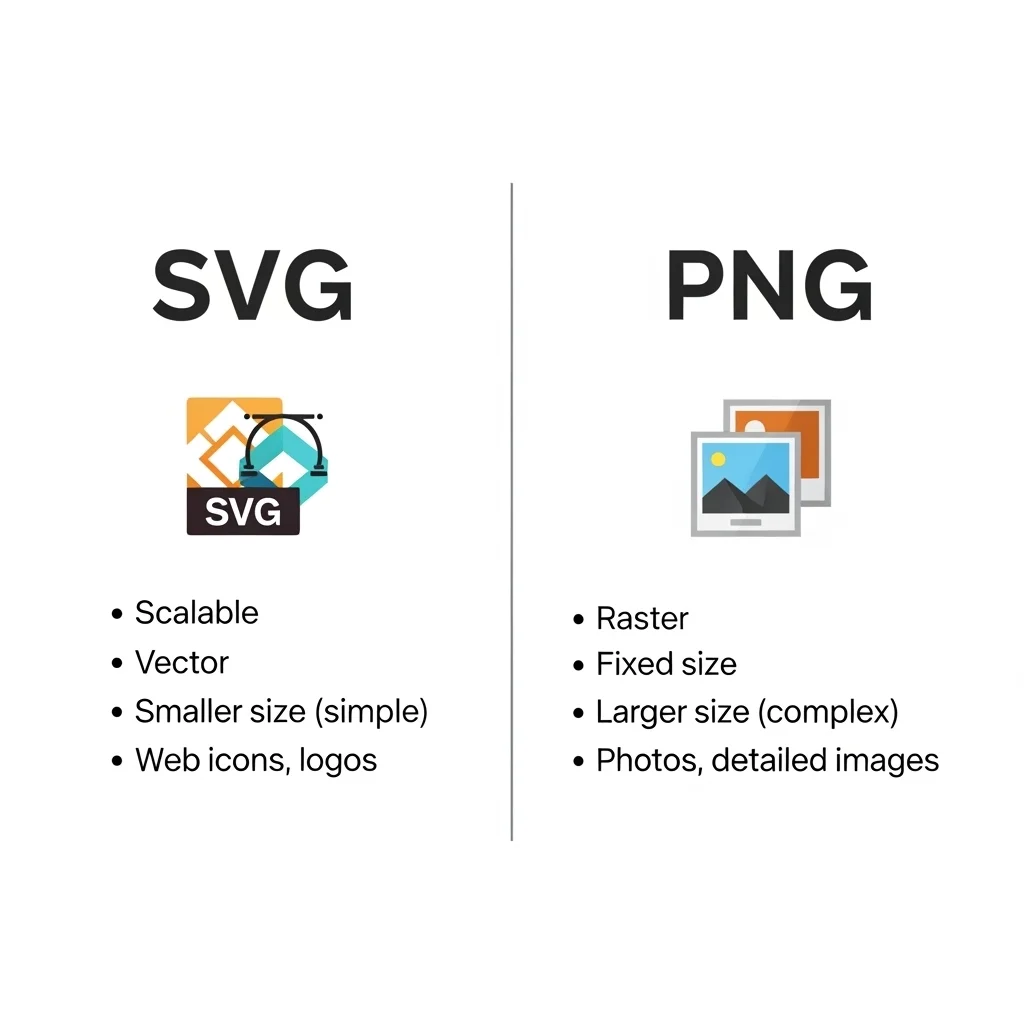
SVG vs PNG — Quick Comparison
| Feature | SVG | PNG |
|---|---|---|
| Scalability | Infinite (vector) | Fixed (raster) |
| Transparency | ✅ Supported | ✅ Supported |
| File Size | Small (simple graphics) | Larger at high-res |
| Browser Support | Modern browsers only | Universal |
| Editability | Code / design tools | Pixel-based editors |
| Best Use | Icons, logos, animations | Web images, social, print |
When universal compatibility matters more than scalability, converting SVG to PNG is the right call.
SVG to PNG Conversion — Quality, Transparency & Resolution
Does Converting SVG to PNG Lose Quality?
Not if done correctly. SVG is vector-based, so it has no fixed resolution. When you convert SVG to PNG, the output quality depends on the render size used during conversion.
This tool renders SVG files at high resolution by default, ensuring your PNG output stays sharp and clean — whether you’re using it on screen or in print.
Does SVG to PNG Preserve Transparent Backgrounds?
Yes. PNG natively supports alpha transparency. When you convert an SVG with a transparent background, the PNG output retains that transparency exactly. No white fill, no background added.
This makes it especially useful for logos, icons, and UI elements that need to sit cleanly over different colored backgrounds.
What Resolution Does the PNG Output Use?
The converter maintains the natural dimensions defined in your SVG file. If your SVG has a defined width and height, the PNG output will match those dimensions at full quality. For best results, ensure your SVG has explicit dimensions set before converting.
Free SVG to PNG Converter — Privacy & Security

Many online tools upload your files to remote servers for processing. This one works differently.
All SVG to PNG conversion happens entirely inside your browser using local processing. Your files are never uploaded, stored, or shared with any server. Once you close the tab, nothing is retained.
What this means for you:
- No file data leaves your device
- No risk of sensitive design assets being stored externally
- Works offline once the page is loaded
- Safe for confidential, proprietary, or client work
For teams and freelancers handling private design assets, browser-only processing isn’t just convenient — it’s the responsible choice.
Who Uses an SVG to PNG Converter Online?
This tool is built for anyone working with digital graphics. Common use cases include:
Web Designers & Developers
Exporting SVG icons and UI elements as PNG for use in apps, emails, or CMS platforms that don’t support SVG natively.
Graphic Designers
Preparing final PNG assets for client delivery, social media uploads, or print-ready file packages.
Marketing Teams
Converting brand assets from SVG to PNG for ad platforms, email campaigns, and content management systems.
Content Creators
Turning vector illustrations into PNG images for blog posts, thumbnails, and social graphics.
Developers
Generating PNG sprites or static assets from SVG source files during front-end build workflows.
Frequently Asked Questions (FAQ)
Is this SVG to PNG converter really free?
Yes. There are no hidden fees, no subscription, and no watermark added to your output files. Convert as many SVG files as you need at no cost.
Do I need to create an account to use this tool?
No. There is no signup or registration required. Open the tool, upload your files, and convert — that’s it.
Can I convert SVG to PNG on mobile?
Yes. The tool works fully in mobile browsers. Upload, convert, and download PNG files directly from your phone or tablet.
How many SVG files can I convert at once?
The tool supports bulk SVG to PNG conversion, allowing you to upload and process multiple files in one session and download them all as a ZIP file.
Does the converter support SVG files with embedded fonts or gradients?
Yes. The browser-based renderer handles standard SVG features including gradients, shapes, paths, and basic embedded elements. Complex or externally linked assets may require embedded references within the SVG file itself.
Is my data safe when using this tool?
Completely. All conversion happens in your browser. No files are uploaded to any server, and nothing is stored after you close the page.