
Crop WhatsApp Profile Pictures with Manual Positioning Control
Perfect 1:1 Square Format with X/Y Slider Precision
Crop multiple images to WhatsApp’s 1:1 square format using precise X/Y positioning sliders or drag controls. Bulk process, preview each adjustment, and download instantly—no watermark, no signup required.
- Manual X/Y positioning with sliders or drag
- Bulk process multiple images instantly
- Real-time preview, no watermark
- 100% free, no signup required
Welcome to Bulk Image Cropper
Drag & Drop your images here or click to select files
✨ Supports: JPG, PNG, WebP, AVIF, BMP, SVG, GIF, HEIC
Crop Image
All processing happens in your browser. Please keep backup copies of your original files — we are not responsible for any file loss or conversion issues.
Welcome to Bulk Image Resizer
Drag & Drop your images here or click to select files
✨ Supports: JPG, PNG, WebP, AVIF, BMP, SVG, GIF, HEIC
How to Crop WhatsApp Profile Pictures in 3 Steps
Learning to crop WhatsApp profile images correctly ensures your pictures display perfectly in the app’s circular frame with precise positioning control.

Step 1: Upload Your Images
Select one or multiple images from your device in JPG, PNG, WebP, AVIF, BMP, SVG, GIF, or HEIC format. Our WhatsApp profile crop tool supports bulk uploads with no file size limits, allowing you to process dozens of images at once for efficient workflow.
Step 2: Adjust Position with X/Y Controls
Use the X Position and Y Position sliders to move your crop area with pixel-precise control, or drag the blue crop frame directly on your image. When you crop WhatsApp profile pictures using our tool, each photo in your batch can be positioned individually, giving you complete control over what stays in the frame. The real-time preview shows exactly how your cropped image will look.
Step 3: Preview and Download
Review your WhatsApp profile crops in real-time before downloading. Once satisfied, click Apply Crop and download individual images or get all your cropped photos in a single ZIP file. No watermarks are added to your images.
Why Bulk Crop Images to WhatsApp Profile (1:1)?
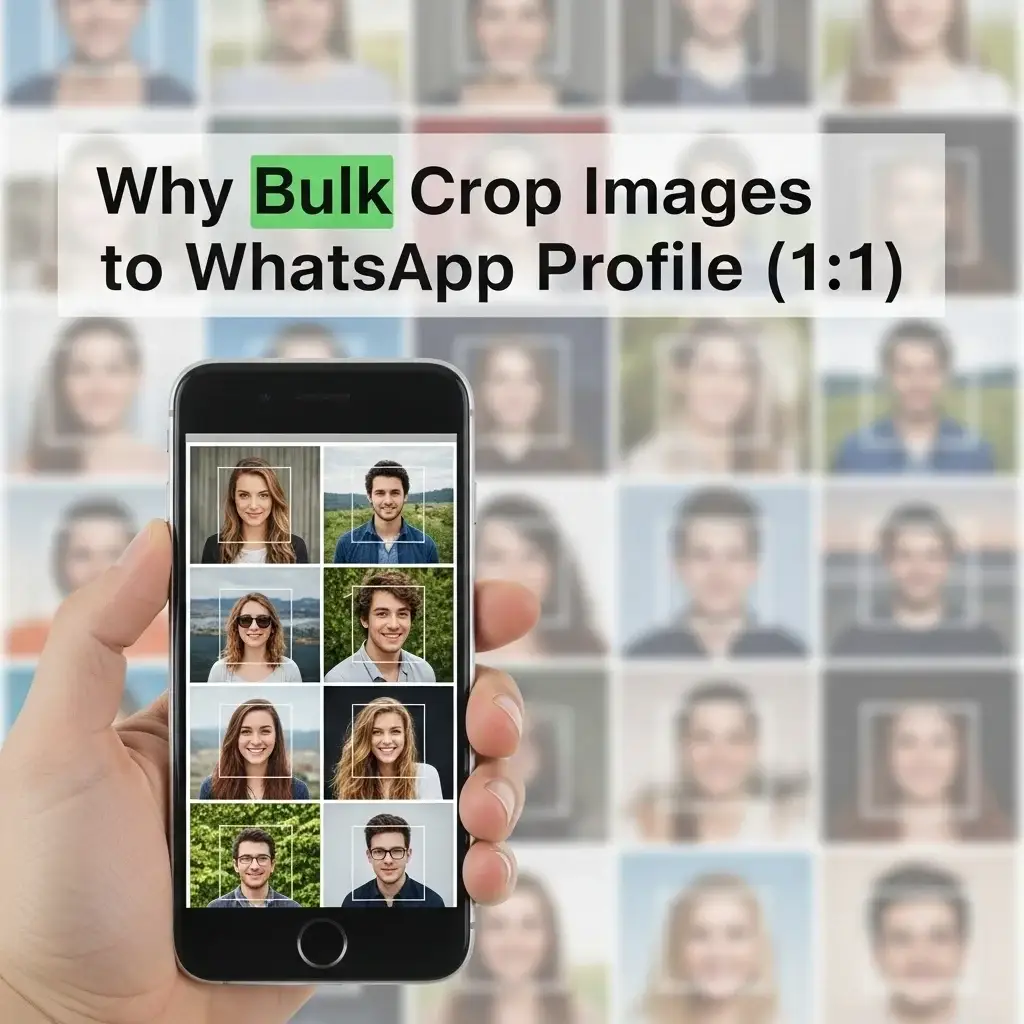
Bulk processing to crop WhatsApp profile pictures saves time and ensures consistency when you need to prepare several images at once. Whether you’re managing team profiles, client accounts, or multiple business listings, batch cropping is significantly more efficient than processing one at a time.
Time Efficiency for Multiple Profiles
When you need to crop WhatsApp profile images for entire teams or multiple accounts, processing them individually wastes valuable time. If you need to prepare 10, 20, or 50 WhatsApp profile pictures, uploading and cropping each one separately can take hours. Bulk crop processing allows you to upload all images at once, position each with individual control, and download everything in a single ZIP file—reducing a multi-hour task to minutes.
Business and Team Applications
Businesses with multiple team members on WhatsApp Business often need consistent profile pictures across all accounts. Marketing agencies managing client profiles, real estate teams with agent headshots, or customer service departments with representative photos benefit from bulk WhatsApp profile crop capabilities. Upload all team headshots, crop and position each to the same standard, and deploy professional-looking profiles across your organization.
Content Creators and Social Media Managers
If you manage multiple WhatsApp Business accounts, create content for clients, or handle social media for various brands, bulk cropping is essential. Process logo variations, different profile images for various campaigns, or seasonal profile updates all at once rather than switching between accounts repeatedly.
Consistent Formatting Across Profiles
Bulk processing ensures formatting consistency. When cropping images one at a time over days or weeks, it’s easy to use slightly different dimensions or positioning. Processing in batches creates visual uniformity—all images follow the same 1:1 ratio, similar positioning rules, and consistent quality standards.
Event and Group Coordination
Planning an event with group admins? Setting up multiple WhatsApp groups for a conference, wedding, or community project? Bulk crop all participant photos, group logos, or event branding images in one session. Everyone gets properly formatted profile pictures without the hassle of individual formatting requests.
Efficiency Without Sacrificing Control
Unlike automated batch tools that apply identical crops to every image, our bulk processor maintains individual positioning control. Each image gets its own X/Y slider adjustments, ensuring faces are centered, logos are positioned correctly, and important elements stay within the circular display area—even when processing dozens of images simultaneously.
WhatsApp Profile Picture Size and Technical Requirements
Understanding the correct dimensions is essential when you crop WhatsApp profile images to ensure optimal display quality across all devices and in the app’s circular frame.
Optimal Size: 640x640 Pixels
The ideal resolution for WhatsApp profile pictures is 640×640 pixels. When you crop WhatsApp profile images to this size, they appear sharp and clear in chat lists, contact cards, group member lists, and when viewed in full screen. Using this resolution prevents pixelation and maintains professional quality across all WhatsApp features.
Minimum Size: 192x192 Pixels
While WhatsApp accepts images as small as 192×192 pixels, anything below this threshold will be rejected. However, using the minimum size often results in blurry or low-quality display, especially on high-resolution screens. For best results when you crop images for WhatsApp profile use, aim for 640×640 pixels or higher.
Required Aspect Ratio: 1:1 (Square Format)
All WhatsApp profile pictures must be in 1:1 square aspect ratio. When you crop WhatsApp profile pictures using our tool, the platform displays these square images inside a circular frame, so understanding how square uploads translate to circular display is essential for proper positioning.
Supported Formats
WhatsApp accepts JPEG and PNG formats. JPEG is recommended for photographs, while PNG is better for logos or graphics with transparent backgrounds (though transparency will be filled with white in WhatsApp’s display). For complete details on WhatsApp’s image requirements and platform guidelines, visit the official WhatsApp Help Center.
If you need to resize your images to the exact 640×640 dimension before cropping, visit our WhatsApp Profile Resizer tool for automatic sizing.
Understanding Square Upload vs Circular Display
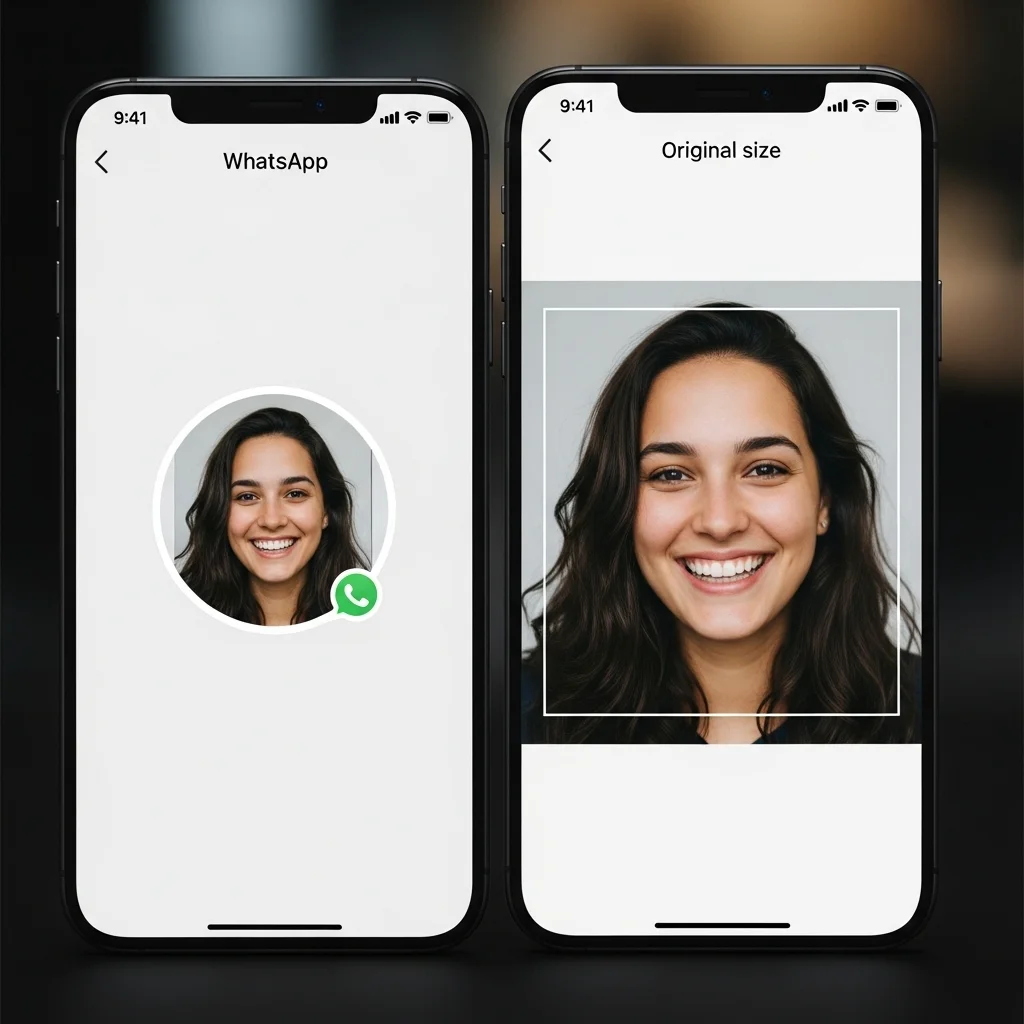
WhatsApp’s profile picture system uses a unique display method that confuses many users: you upload a square image, but it displays as a circle.
Why WhatsApp Uses This System
WhatsApp requires 1:1 square uploads because it provides consistency across all image sources. However, the app displays these square images inside a circular mask for aesthetic and design reasons. This circular display is standard across most modern messaging apps.
What Gets Cropped in Circular Display
When WhatsApp renders your square image as a circle, the corners of your square are automatically hidden. Approximately 30% of your image’s corners fall outside the circular frame. This means important elements placed too close to the edges or in corners will be cut off in the circular view.
The Safe Zone Concept
The “safe zone” is the circular area in the center of your square image that will always be visible. When positioning your crop using our X/Y sliders, focus on keeping faces, logos, and important elements within this central circular area. Our preview helps you visualize exactly what will be visible in WhatsApp’s circular frame.
Why Manual Positioning Matters
Because WhatsApp applies its own circular crop, having precise control over where your subject sits in the square frame is crucial. Our X/Y positioning sliders let you center faces, adjust logo placement, and ensure critical elements stay within the visible circular area.
Manual Positioning Control: X/Y Sliders and Drag Method
When you crop WhatsApp profile pictures with our tool, you get two precision methods for positioning—giving you complete control over the final result.
X Position Slider (Horizontal Positioning)
The X Position slider controls horizontal movement of your crop frame. Move the slider right to shift the crop area right, revealing more of the left side of your image. This precision is essential when you crop WhatsApp profile images to center faces or logos within the circular display frame.
Y Position Slider (Vertical Positioning)
The Y Position slider controls vertical movement. Slide up to move the crop area upward, bringing lower portions of your image into frame. When you crop WhatsApp DP images, this is especially useful for centering faces or adjusting how much headroom appears above a subject.
Drag Method for Visual Positioning
For faster, more intuitive adjustments, click and drag the blue crop frame directly on your image. This visual method is ideal for quick positioning when you crop WhatsApp profile pictures, while sliders are better for fine-tuning and pixel-perfect precision.
When to Use Each Method
Use drag positioning for initial placement and general adjustments. Switch to X/Y sliders when you need exact centering, symmetrical positioning for logos, or fine-tuning facial placement. Many users combine both methods: drag for speed, then slider fine-tuning for perfection.
Reset Function
Made a mistake? Click the Reset button to return the crop frame to its default centered position and start over.
Positioning Best Practices for Different Use Cases
When you crop WhatsApp profile images, different types of profiles require different positioning strategies for optimal results in the circular display frame.
Personal Profiles: Centering Faces
For personal profile pictures, your face should occupy the central circular safe zone. When you crop WhatsApp profile photos for personal use, use the Y Position slider to adjust headroom—generally, you want your eyes positioned slightly above center, with adequate space above your head. The X Position slider helps center your face horizontally if your source photo is off-center.
For close-up selfies, ensure your entire face fits within the circular frame. For full-body or environmental shots, position yourself centrally and accept that background elements in corners will be cropped.
Business Profiles: Logo Placement
Business logos and brand elements need perfect centering for professional appearance. When you crop logos for WhatsApp Business profiles, use both X and Y sliders to center your logo symmetrically within the square frame. If your logo has text, ensure all text elements fall within the circular safe zone—text near corners will be cut off in the circular display.
Square logos work best. If your logo is rectangular or horizontal, you may need to add padding or adjust your source image before cropping.
Group Photos: Balancing Multiple Subjects
Group photos are challenging because you need to fit multiple faces in a small circular frame. When you crop WhatsApp profile pictures for groups, position the crop so the most important faces are centered. Accept that some peripheral group members may fall partially outside the circular display area.
For team photos or group shots, center the main focal point (often the center person or central grouping) and let the X/Y sliders help you balance the composition.
Bulk Processing with Individual Control
Our bulk cropping feature saves time while maintaining quality control for each image.
How Bulk Processing Works
Upload multiple images simultaneously. Each image gets its own crop interface where you can adjust X/Y positioning individually. This means you’re not applying a one-size-fits-all crop—you maintain precision control over every single image in your batch.
Individual Positioning Per Image
After uploading multiple files, position each one separately using sliders or drag controls. This is essential because different photos have different compositions, and what works for one won’t work for all. Preview each crop before moving to the next image.
Batch Download Options
Once all images are cropped and positioned correctly, download them individually or get all files in a single ZIP archive. The ZIP option is fastest for large batches—one click downloads everything.
Efficient Workflow Tips
For maximum efficiency, sort your images by type before uploading. Crop all similar images (like headshots) in one batch, then process logos or different composition types separately. This mental grouping helps you work faster while maintaining quality.
Common Problems When You Crop WhatsApp Profile Pictures
Problem: Face Gets Cut Off at Top or Bottom
This happens when your source image has the face positioned too high or too low in the frame. When you crop WhatsApp profile images, use the Y Position slider to move the crop frame vertically. If the face is cut off at the top, move the Y slider downward to lower the crop frame and include more of the upper area.
Problem: Subject is Off-Center Horizontally
When your subject appears on the left or right side of the source image and you crop WhatsApp profile pictures, use the X Position slider to recenter. Move the slider in the opposite direction of where you want the frame to go—slide left to capture more of the right side, slide right to capture more of the left side
Problem: Important Elements in Corners Get Cropped
Remember that WhatsApp displays your square image as a circle, cutting off corners. If important elements appear in corners of your crop, they’ll be hidden in the circular display. When you crop WhatsApp DP images, reposition your crop to bring these elements toward the center using both X and Y sliders.
Problem: Image Looks Pixelated or Blurry
This occurs when your source image is too small. WhatsApp needs at least 192×192 pixels, but for sharp results, use images that are 640×640 or larger. If your source is smaller, consider using a higher resolution photo or accept some quality loss.
Problem: Can't See Full Subject in 1:1 Frame
The 1:1 square ratio is fixed and required by WhatsApp. If your source image is very wide (landscape) or very tall (portrait), some areas will necessarily be cropped out. Choose which portion to keep using the positioning controls, or use our WhatsApp Profile Resizer to prepare your image before you crop.
Quality Preservation and Format Support
Lossless Cropping Technology
Our tool uses lossless cropping, meaning the quality of the pixels within your selected crop area remains identical to your source image. No compression is applied during the cropping process, ensuring your WhatsApp profile picture looks as sharp as the original photo.
Supported Input Formats
Upload images in JPG/JPEG, PNG, WebP, AVIF, BMP, SVG, GIF, or HEIC format. The tool automatically handles format conversion if needed, outputting your cropped images in WhatsApp-compatible JPEG or PNG format. Each format has different characteristics—learn more about image formats and optimization best practices from Mozilla’s web standards documentation.
Resolution Maintenance
The cropping process maintains the resolution of your selected area. If you crop from a high-resolution source image, your output will be high-resolution as well (up to the cropped dimensions). For best WhatsApp display, ensure your final crop is at least 640×640 pixels.
No Watermarks Ever
Unlike many free tools, we never add watermarks, logos, or branding to your images. Your cropped profile pictures are completely clean and ready to upload directly to WhatsApp without any modifications.
Frequently Asked Questions (FAQ)
What is the best size for WhatsApp profile picture?
The optimal size is 640×640 pixels in 1:1 square aspect ratio. This resolution ensures sharp, clear display across all devices and viewing contexts within WhatsApp. While the minimum accepted size is 192×192 pixels, using this smaller dimension often results in pixelation and poor quality.
Can I crop multiple WhatsApp profile pictures at once?
Yes, our tool supports bulk processing. Upload multiple images simultaneously, position each one individually using X/Y sliders or drag controls, and download all cropped images together in a ZIP file or individually.
Why does WhatsApp crop my profile picture into a circle?
WhatsApp displays all profile pictures in a circular frame for design consistency, but requires square (1:1 aspect ratio) uploads for technical uniformity. When the square image is rendered, the corners fall outside the circular display mask. This is why proper positioning within the square frame is crucial.
How do I center my face in the crop?
Use the Y Position slider to adjust vertical placement—typically, you want your eyes positioned slightly above center. Use the X Position slider for horizontal centering if your face is off to one side in the source photo. The real-time preview shows exactly how your crop will look.
Is this tool really free with no watermarks?
Yes, completely free with no watermarks, no registration required, and no hidden fees. Process unlimited images without any branding added to your photos.
What image formats can I upload?
Our tool supports JPG/JPEG, PNG, WebP, AVIF, BMP, SVG, GIF, and HEIC formats. All formats are processed and output as WhatsApp-compatible JPEG or PNG files.
More Than Just the WhatsApp Profile Cropper
Used our WhatsApp Profile Cropper to get the perfect crop? If you need the same photo cropped for another platform, these related tools are ready to help, no extra software needed.